> For the complete documentation index, see [llms.txt](https://docs.allganize.ai/allganize-alli-works-userguide-en/llms.txt). Markdown versions of documentation pages are available by appending `.md` to page URLs; this page is available as [Markdown](https://docs.allganize.ai/allganize-alli-works-userguide-en/alli-works-settings.md).
# Alli Works settings
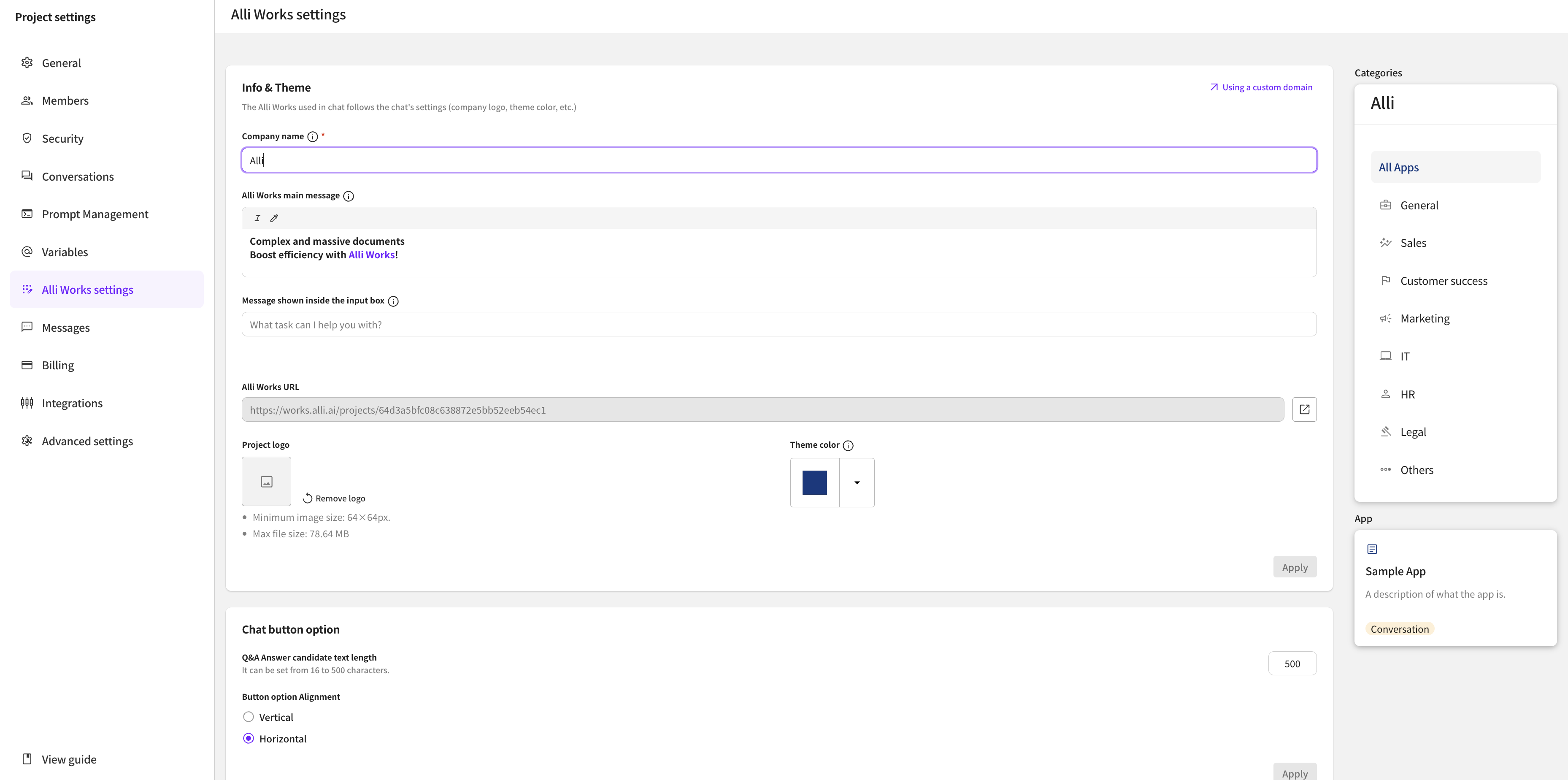
Through Settings > Alli Works Settings, you can freely change various settings and designs of Alli Works provided to members.
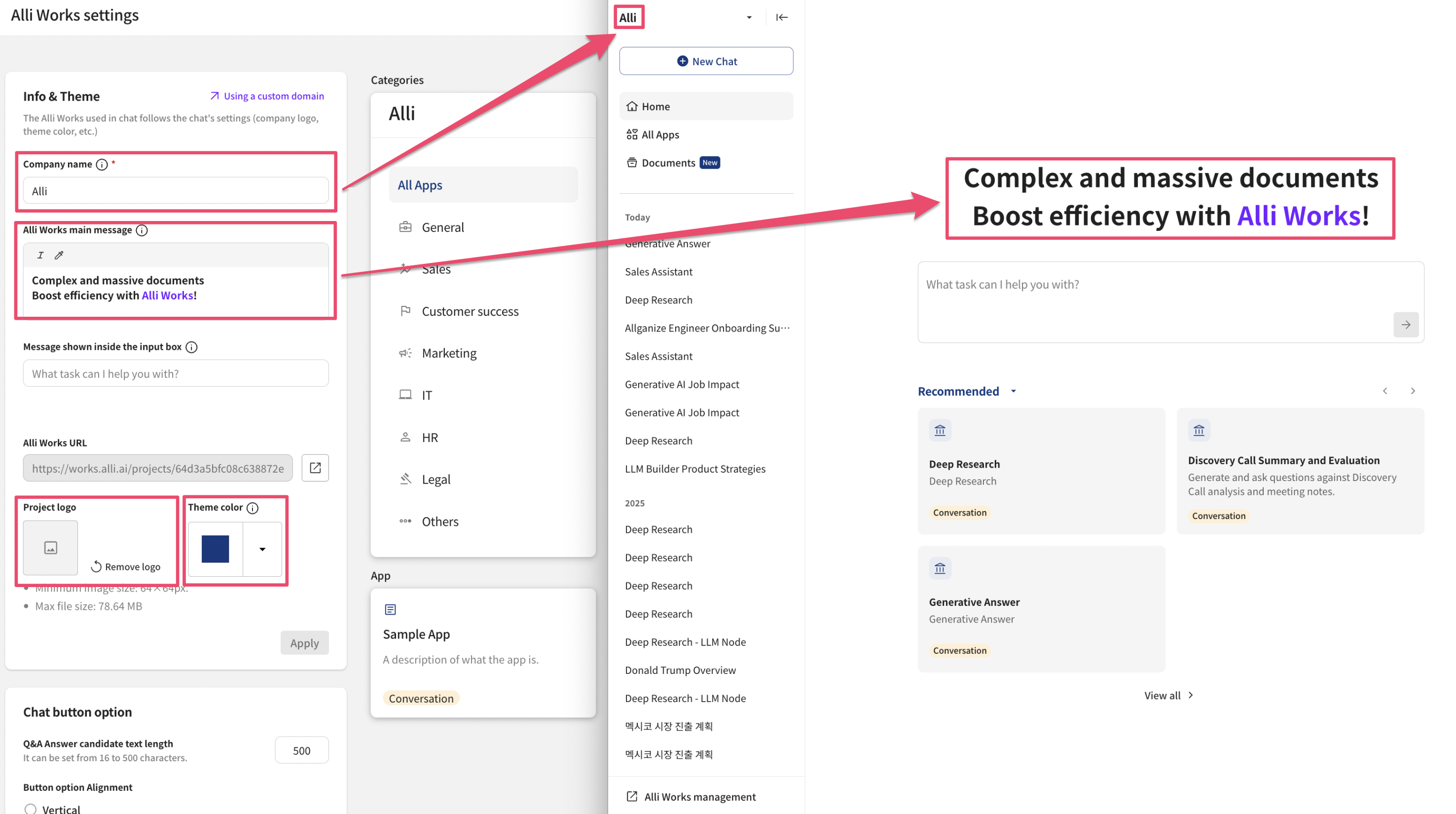
* You can change the company/organization name displayed in Alli Works.
* You can edit the main message that will appear on the Alli Works home screen.
* You can edit the guide text that will appear in the Alli Works input field.
* You can copy the direct URL for Alli Works.
* You can set a logo image to appear instead of the company/organization name. You can upload an image to use, or press the 'Reset to default' button to remove the image.
* You can change the default theme color displayed in Alli Works.
If you set it like the left screen, it will be applied like the right screen. Below is a detailed explanation of each item.
* You can set the Q\&A answer candidate text length up to a maximum of 500 characters.
* When there is a UI that shows buttons during chat, you can set the button layout type.
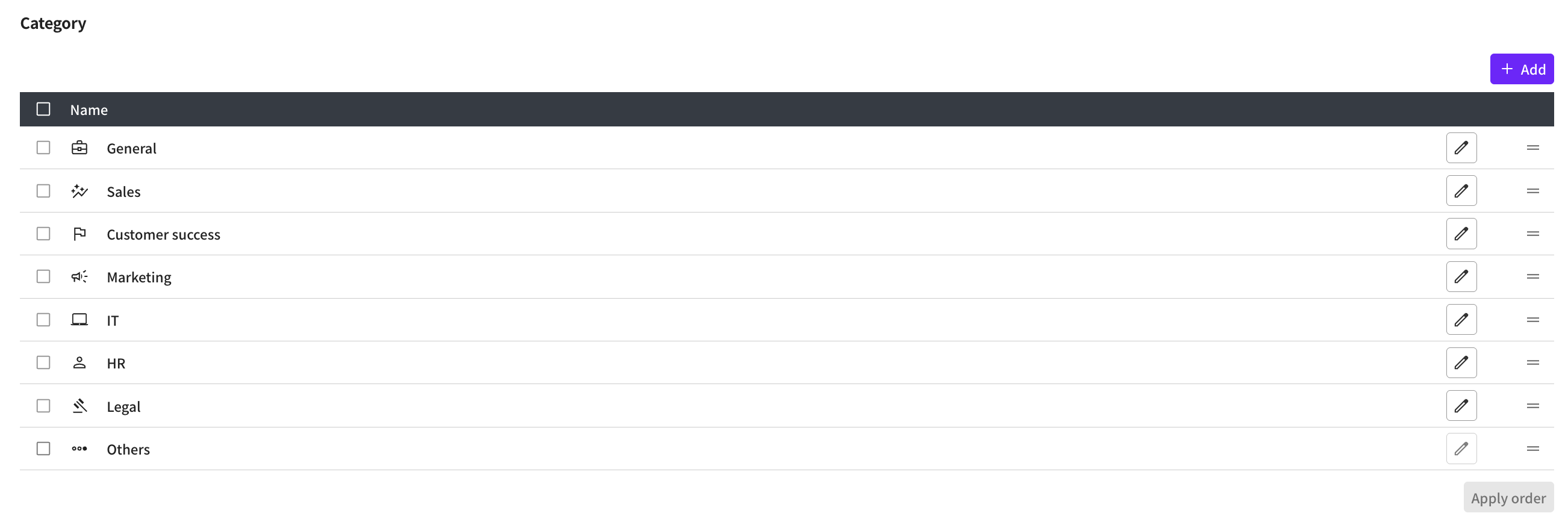
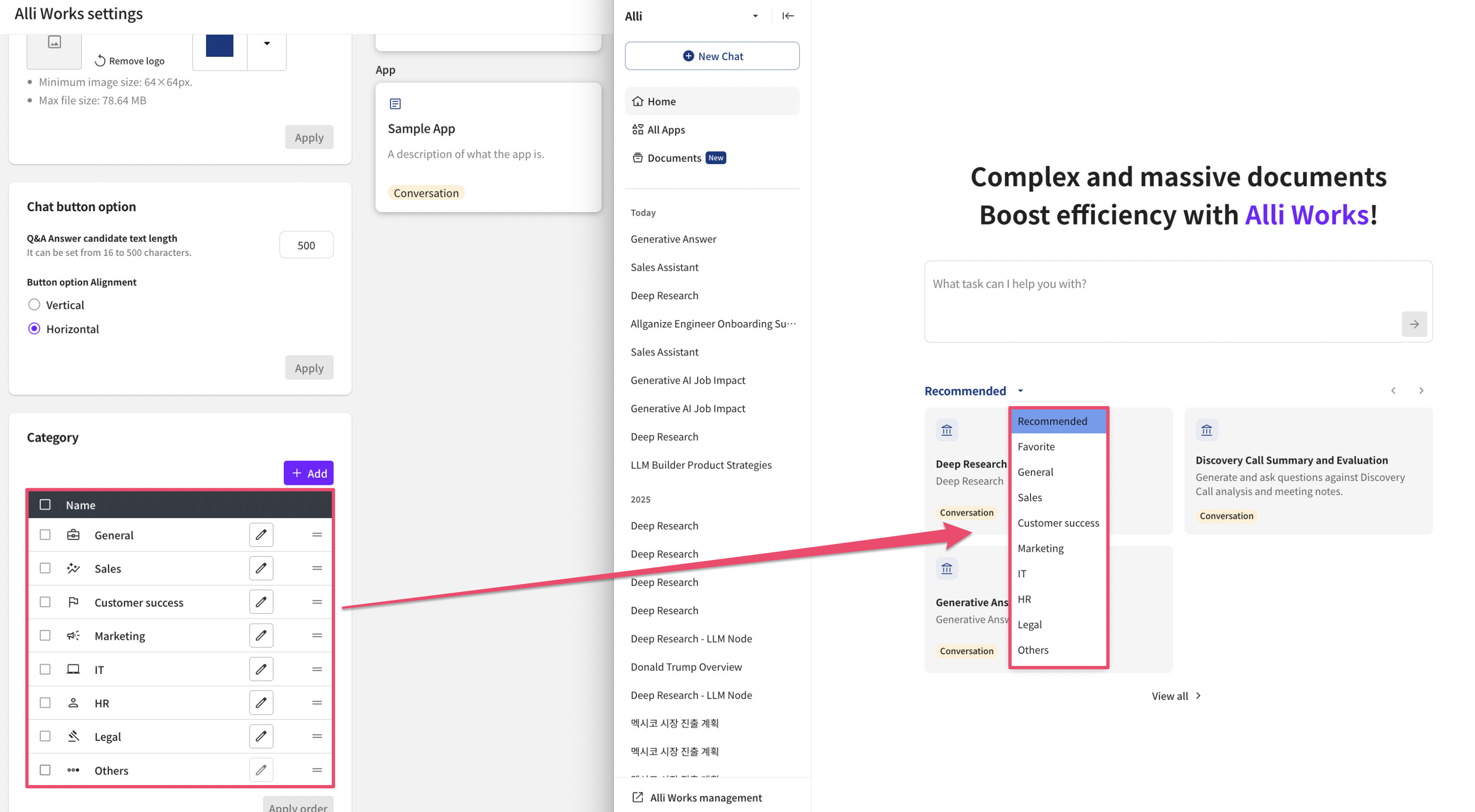
* You can change the order of categories displayed in Alli Works or add new categories.
* You can preview the category list on the right.
* It will be applied to Alli Works as shown in the screen below.