> For the complete documentation index, see [llms.txt](https://docs.allganize.ai/allganize-alli-works-userguide-en/llms.txt). Markdown versions of documentation pages are available by appending `.md` to page URLs; this page is available as [Markdown](https://docs.allganize.ai/allganize-alli-works-userguide-en/documents/bulk-manage-hashtags.md).
# Bulk manage hashtags
### Bulk add/remove hashtags
With the bulk hashtag setting feature, you can add/remove hashtags across multiple documents at once.
In the Documents menu, select the desired documents individually or using the batch checkboxes. You can select up to 1000 documents at once.
Via the icon next to the trash can at the top right, **#Hashtag management** click the button.
**Add hashtag**
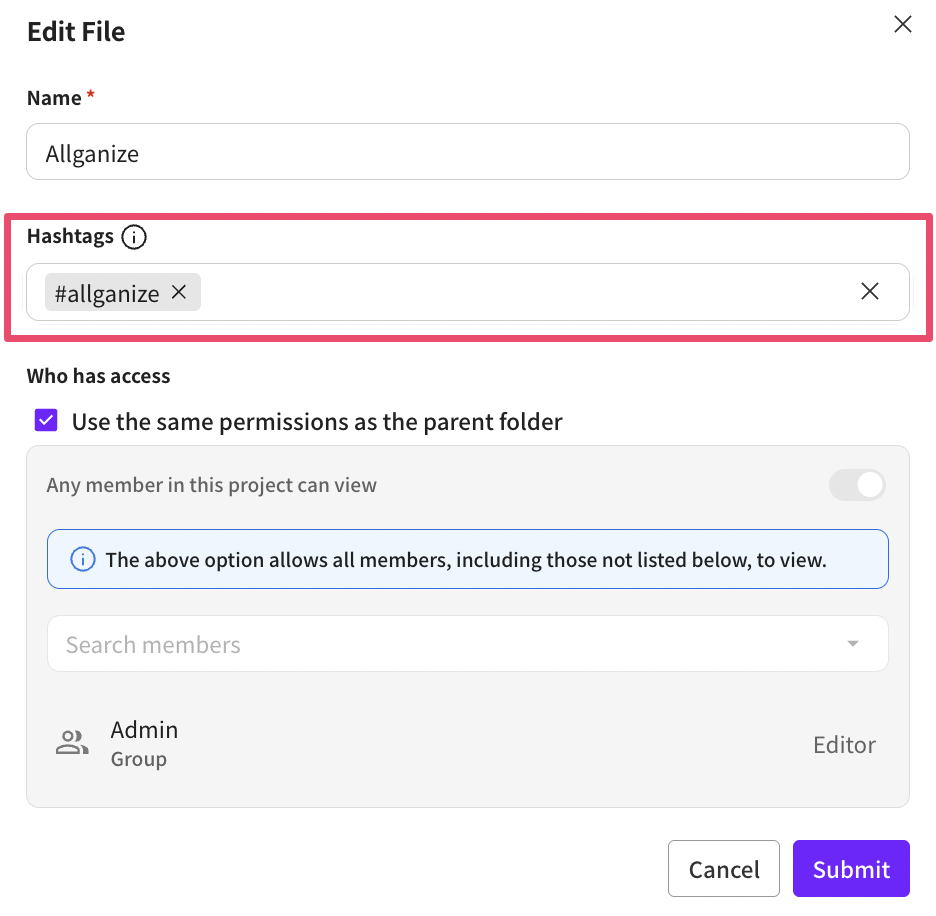
You can select hashtags from the existing list or create new ones.
**Remove hashtag**
You can conveniently select hashtags from the existing hashtag list. Click the confirm button at the bottom right to apply the new hashtags.
### Search by hashtag
You can easily search documents using the hashtag feature.
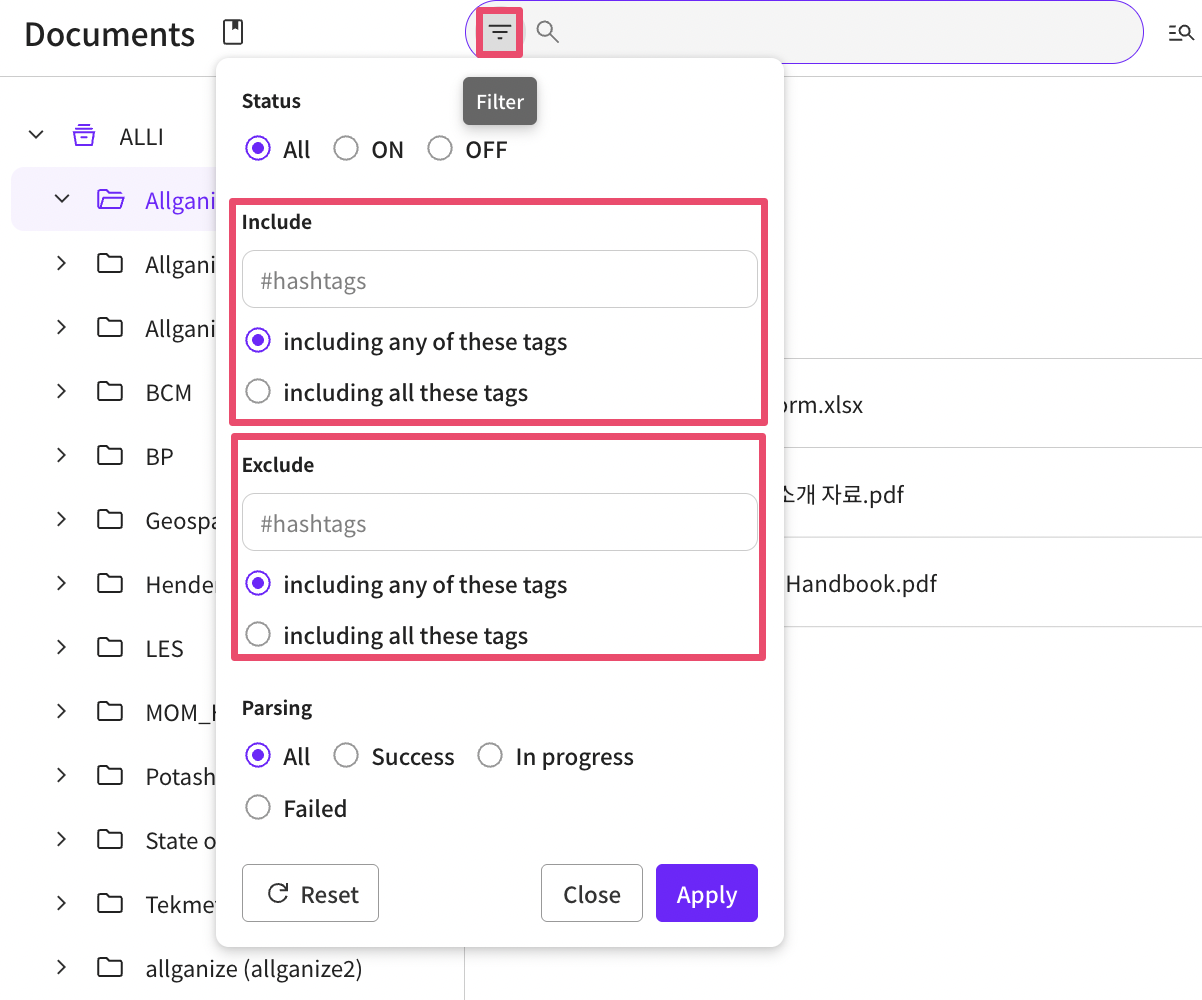
Click the **filter icon**to the left of the search bar at the top of the Documents menu. Along with document ON/OFF and parsing status, **hashtags to include**and **hashtags to exclude**can be filtered.
Click the input box to select one or more hashtags from the list to include/exclude for each item.
When filtering multiple tags, by setting documents that include any of the above tags or documents that include all tags, you can find hashtagged documents within the range you want.
### Using hashtags
Hashtags are included in a document's metadata and are useful for effectively filtering documents on a specific topic or category.
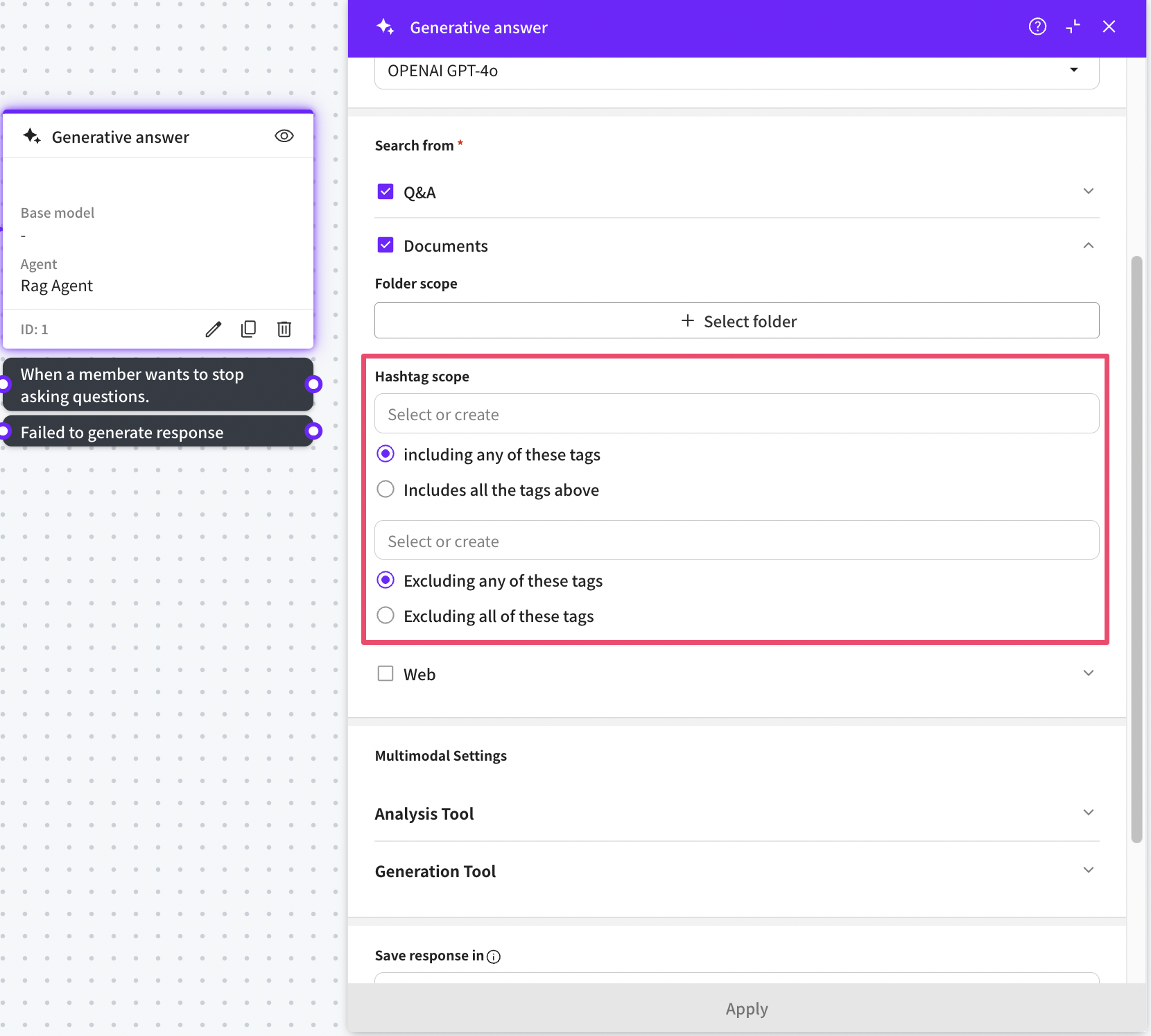
**Specifying document search scope by hashtag**
* Hashtags can be used as filtering conditions when searching documents to help include only documents containing certain tags or exclude documents containing certain tags.
* For example, if you want only finance-related documents from a particular app to be used for answer generation and want to exclude management-related documents, you can use hashtags to set it up as follows:
* Select only documents that include the finance tag
* Exclude documents that include the management tag