> For the complete documentation index, see [llms.txt](https://docs.allganize.ai/alli-llm-app-market/llms.txt). Markdown versions of documentation pages are available by appending `.md` to page URLs; this page is available as [Markdown](https://docs.allganize.ai/alli-llm-app-market/manual/project-settings/external-service-integration/okta-authentication.md).
# Okta認証
## 概要
Okta認証を使用して、エンドユーザーがAlli LLM App Marketを使用する際のセキュリティを強化することができます。 \
Alli LLM App Marketのダッシュボード上でメンバーが Okta 認証を設定すると、エンドユーザーは Okta 認証を受けた場合のみ アプリランチャー と アプリ を使用することができるようになります。
**※Alli Works へのOkta認証機能はオプション機能の為、こちらの機能をお使いになりたい場合は、担当セールスまたはカスタマーサクセスまでご連絡ください。**
## Alli LLM App MarketダッシュボードとOktaダッシュボード上での設定
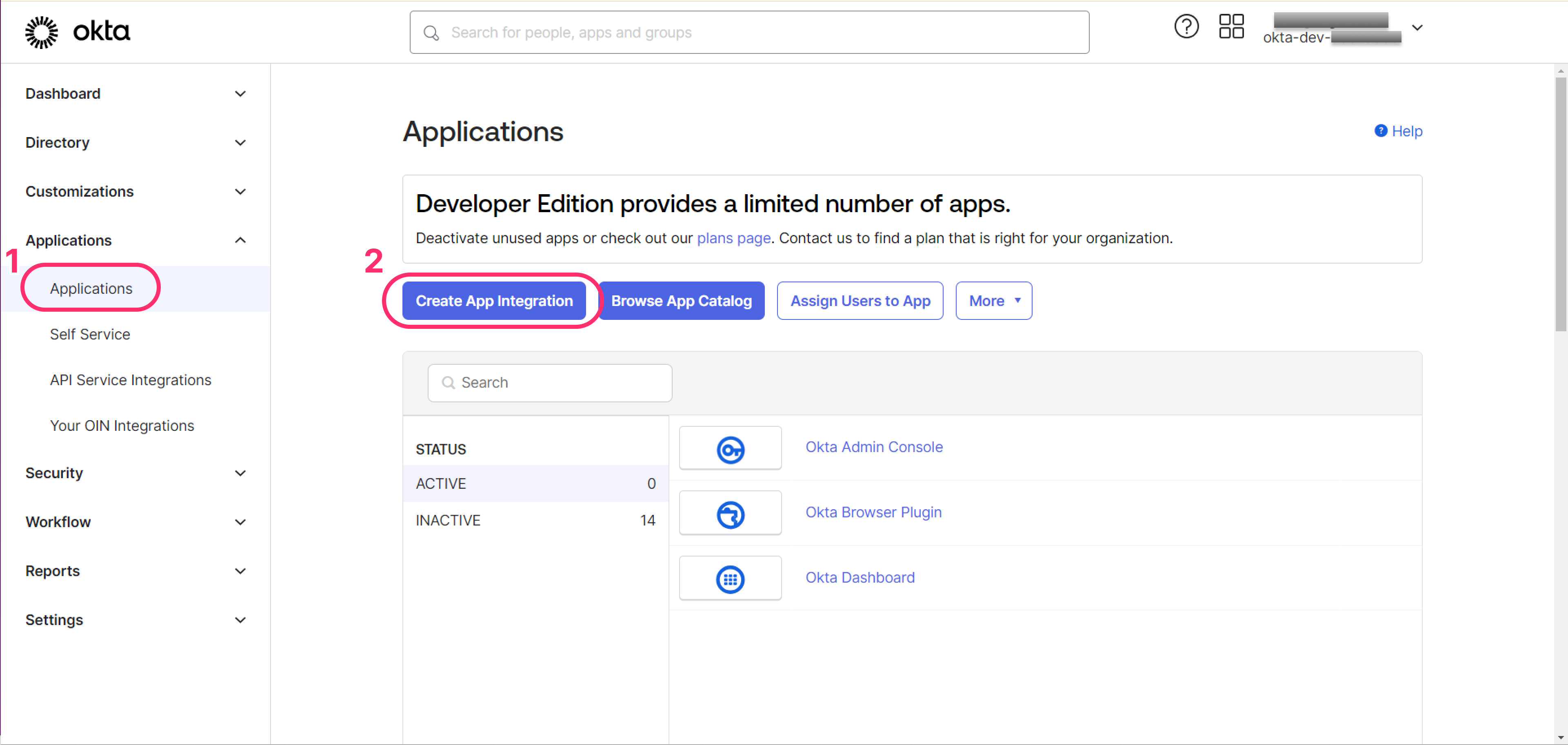
1. Oktaの管理者ダッシュボードにログインしてください。
2. Applications > Applications 内の「**Click Create App Integration**」 ボタンを選択します。
3. 「***Sign-in method**」*と「***Application type」**を選択してください。*
①「***Sign-in method**」は、"**OIDC (OpenID Connect)"***\
「***Application type」**は、"**Single-Page Application"**を選択してください。*\
\
*アプリケーション作成画面が開きましたら次に進みます。*
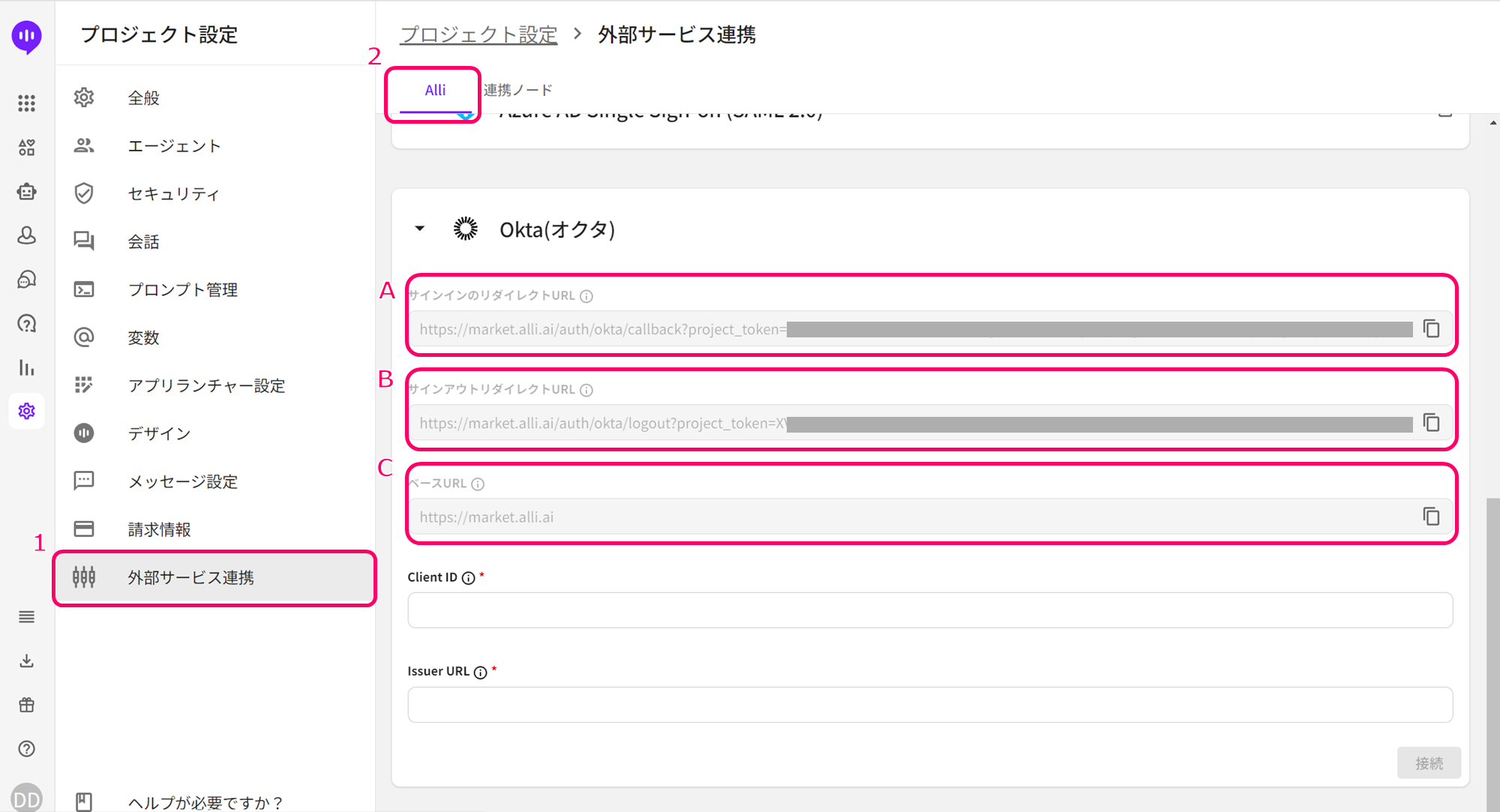
4. Alli LLM App Market ダッシュボード > プロジェクト設定 > 外部サービス連携 > Okta にアクセスし、下記**A,B,C**の値を保存してください。
A,B,Cの値は次のステップで使用しますので控えておいてください。
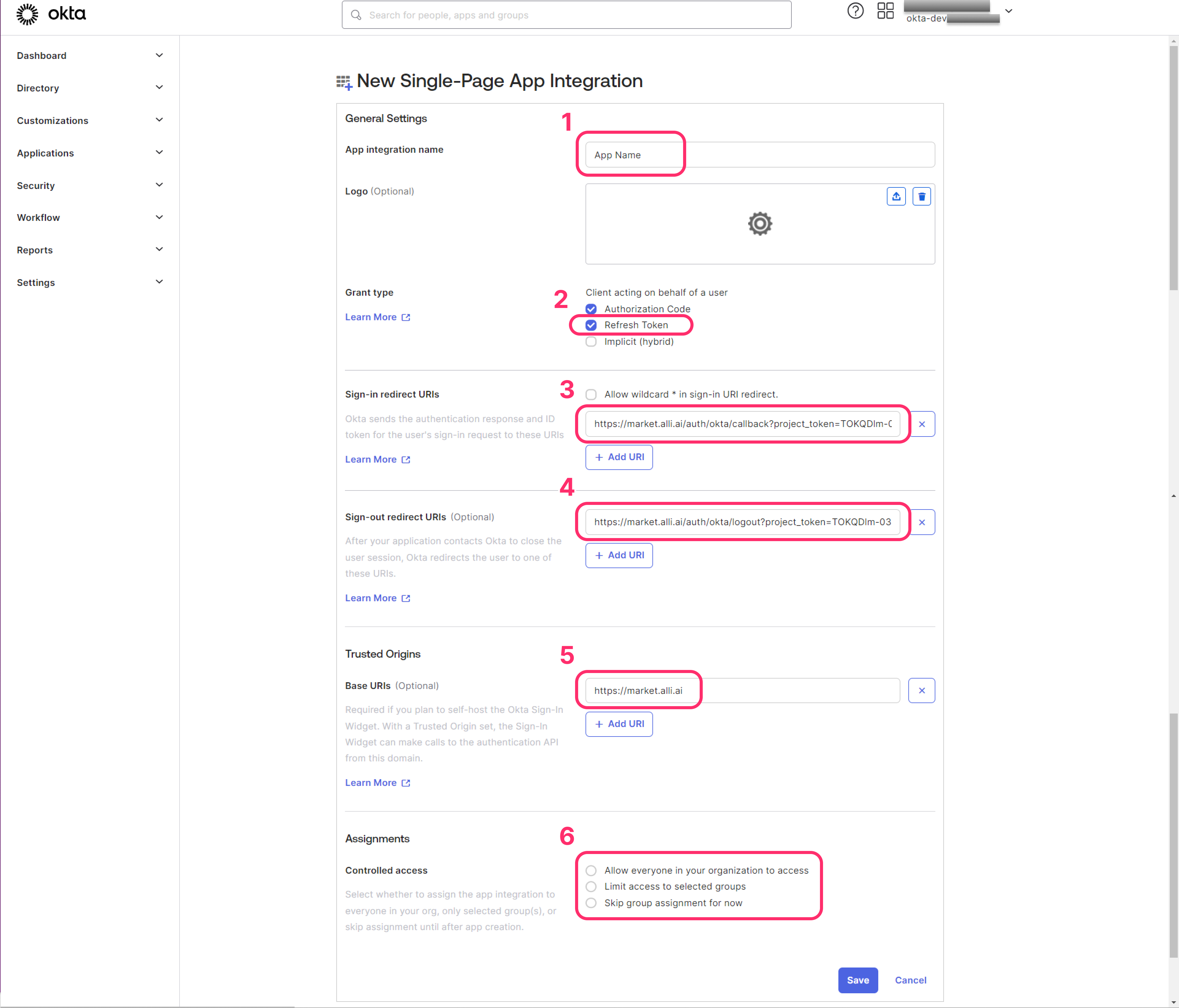
5. Okta ダッシュボード に Okta アプリケーションの情報を入力します。
①アプリ連携名を入力(例:Alli)
②認可タイプの「リフレッシュ・トークン」オプションをチェックします。
③4.の値Aをコピーして貼り付けます
④4.の値Bをコピーして貼り付けます
⑤4.の値Cをコピーして貼り付けます
⑥アクセス制御のオプションを選択します
「***Skip group assignment for now***」を選択した場合は、ユーザーまたはグループを後ほど手動で割り当てる必要があります。
「Save」ボタンをクリックすると、以下のページが表示されます。
上記画面内 1.のClient IDは次のステップで使用しますので控えておいてください。
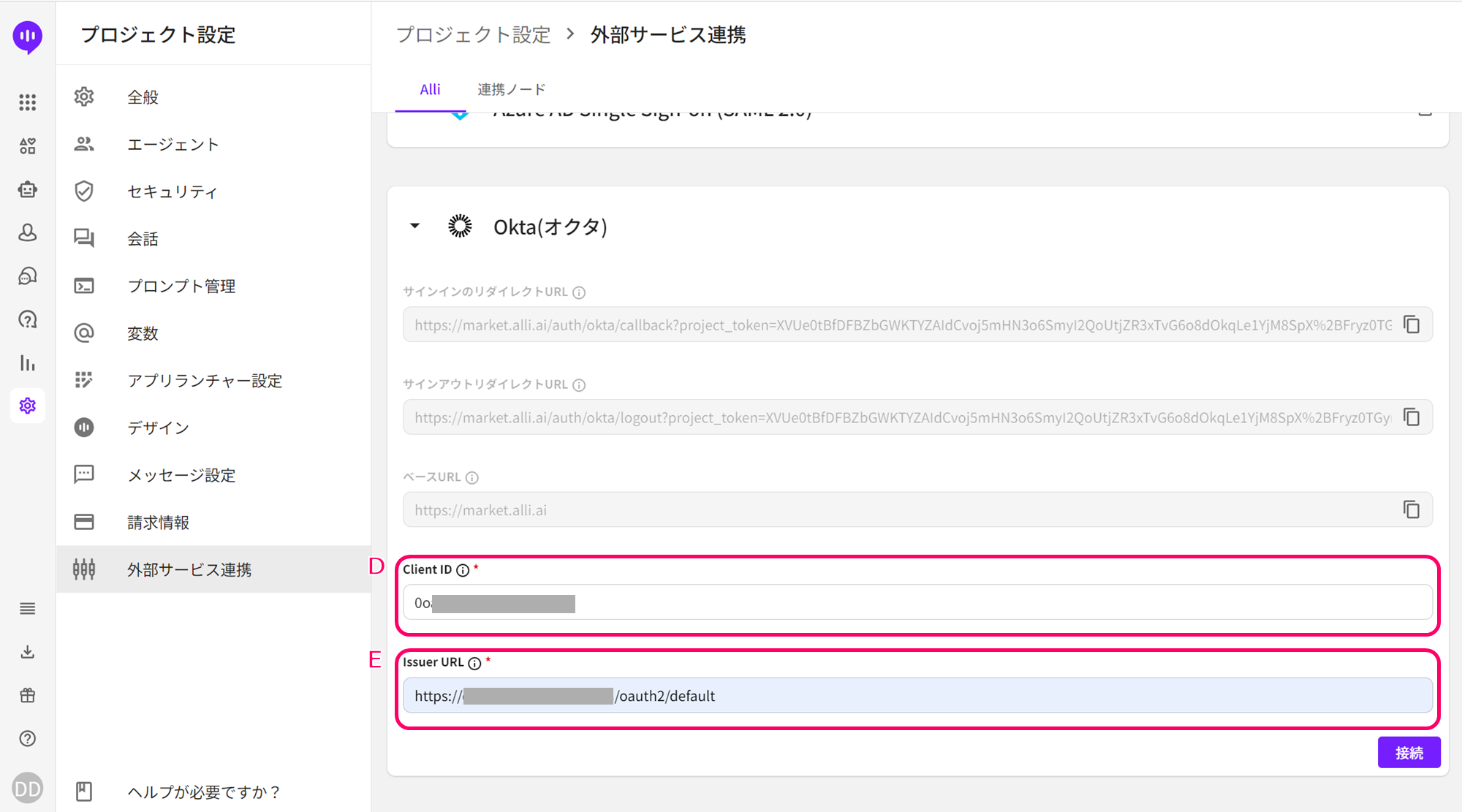
6. Alli LLM App Market ダッシュボード > プロジェクト設定 > 外部サービス連携 > Okta にアクセスし、下記D,Eの情報を入力してください。
D: 5.で控えておいた1.の値(ClientID)をコピーして貼り付けます
E:手動で入力してください。これは Okta アプリケーションの URL です。 Okta インスタンス名に基づいている必要があります。\
\
例)\
下記の情報でログインしている場合、
https\://{your\_okta\_instance\_name}-admin.okta.com
次の値をEに入力します
https\://{your\_okta\_instance\_name}.okta.com/oauth2/default\
**{your\_okta\_instance\_name}以降の「-admin」の文字列が削除されていることにご注意ください。**
7. 接続ボタンをクリックし、以下のようなメッセージが表示されていれば接続は完了です。
## Okta認証を使用したアプリランチャーへのアクセス(エンドユーザー画面)
プロジェクトにOkta 認証が接続されている場合、エンドユーザーは Okta 認証を受けて アプリランチャーにアクセスをする必要があります。
1. アプリランチャーにアクセス\
アクセスする方法は下記の3つです。\
①「アプリ管理」>「アプリランチャー」ボタンのクリック
②プロジェクト設定 > アプリ ランチャー管理 > コピー ボタンのクリック
③アプリ ランチャーの URL を直接指定してアクセス
2. Oktaの認証画面が立ち上がります。\
エンドユーザーが自身のID/PWでログインが完了するとアクセスが完了します。
Oktaからサインアウトする場合は、アプリランチャー画面の「サインアウト」ボタンを選択してください。
## Okta認証を使用した各アプリへのアクセス(エンドユーザー画面)
プロジェクトにOkta 認証が接続されている場合、エンドユーザーは Okta 認証を受けて各アプリにアクセスをする必要があります。
1. 各アプリにアクセス\
Okta認証を介したアクセスは下記の4つです。\
①アプリマーケット > 各アプリをクリック > 「アプリをテストする」をクリック
②アプリ管理 > (公開)アプリをクリック > 「アプリテスト」をクリック
③各アプリの URLに直接アクセス\
(\[アプリ管理] > \[アプリ] > \[その他] ボタン > \[URL をコピー] から)
④アプリランチャー > アプリをクリック
2. アプリランチャーと同様にOktaの認証画面が立ち上がります。
ただし、エンドユーザーが アプリランチャーにアクセスするために既に Okta 認証を受けている場合は、各アプリへのアクセス時にOkta 認証を行う必要はありません。
## 更新情報
2024年5月 "**会話型アプリ**"へのOkta認証の対応をサポートいたしました。
---
# Agent Instructions
This documentation is published with GitBook. GitBook is the documentation platform designed so that both humans and AI agents can read, navigate, and reason over technical content effectively. Learn more at gitbook.com.
## Querying This Documentation
If you need additional information that is not directly available in this page, you can query the documentation by asking a question.
Perform an HTTP GET request on the following URL with the `ask` and `goal` query parameters:
```
GET https://docs.allganize.ai/alli-llm-app-market/manual/project-settings/external-service-integration/okta-authentication.md?ask=&goal=
```
`ask` is the immediate question: it should be specific, self-contained, and written in natural language.
`goal` is what the user is ultimately trying to achieve, the reason they need the answer. Sharing it helps GitBook give you a better, more relevant answer. A goal is most helpful when it describes the outcome the user wants rather than restating the question. For example, with `ask=how do I create an API token`, a goal like `automate deployments from our CI pipeline` lets GitBook tailor the answer to that use case.
The response will contain a direct answer to the question and relevant excerpts and sources from the documentation.
Use this mechanism when the answer is not explicitly present in the current page, you need clarification or additional context, or you want to retrieve related documentation sections.





.png?alt=media&token=1d2a6451-9cfb-4355-9111-0d75f00161d7)
