> For the complete documentation index, see [llms.txt](https://docs.allganize.ai/nlu-api-dashboard/llms.txt). Markdown versions of documentation pages are available by appending `.md` to page URLs; this page is available as [Markdown](https://docs.allganize.ai/nlu-api-dashboard/model-management/manage-model.md).
# Manage Model
Get to know how to manage your model
Through the History menu in GNB, you can manage your model.
## Train Model
If you press the 'Train Model' button at top of the Dashboard page, the model version is updated through training data and a new one is created.
GNB > Dashboard > Train Model
## Create Model
Once a model training is done, you can check the created model along with the following information **at the top of the model list** on History page.
GNB > History > Model History > Created Model after finishing training
* Model name
* Number of training/test data samples
* Performance Metrics (Precision, Recall, Accuracy, F1 score)
* Created time
##
## Deploy Model
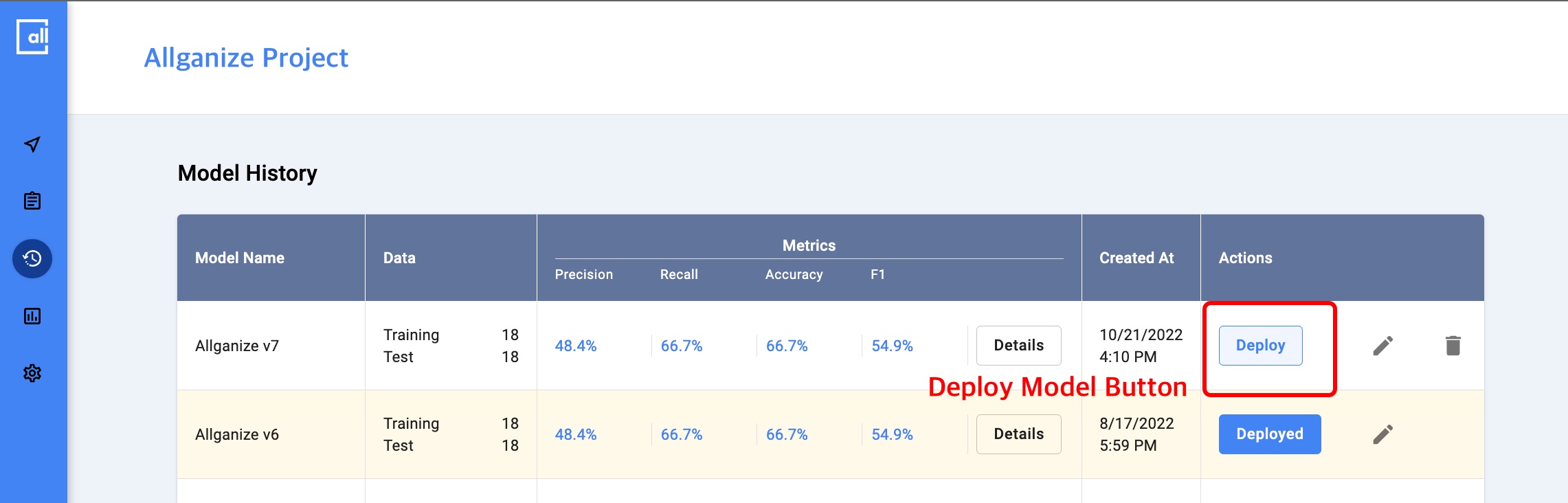
If you confirmed that the model has the desired performance, it can be deployed by clicking the 'Deploy' button in the Actions column.
GNB > History > Model History > Deploy button
{% hint style="info" %}
When the deployment is complete, the button is displayed as Deployed as its status.
{% endhint %}
## Edit/Delete Model
You can edit or delete the model name through the Edit/Delete menu in the right column whenever you want.
GNB > History > Model History > Edit/Delete Model
{% hint style="warning" %}
Please be careful as once deleted models cannot be restored.
{% endhint %}
## Check Performance
You can also check the model's performance from History page.
{% content-ref url="/pages/k7ESygWBBYYWBiC2gBk2" %}
[Performance Metrics](/nlu-api-dashboard/model-management/performance-metrics.md)
{% endcontent-ref %}
{% hint style="info" %}
You cannot start training another model on Dashboard before you finish applying the recently created model. \
If you want to train a new model, you can do so by **deleting 'the recently created but not deployed' model**.
{% endhint %}