# Evaluate & Tune

After model training is complete, model inference results are displayed on both the dashboard and inference page. The UI form in which the inference result is output is slightly different for each model (API).&#x20;

The process of checking the inference result of the model and correcting it (entering [Ground Truth](/nlu-api-dashboard/terms.md#ground-truth)<mark style="color:blue;">)</mark> will be explained below through three representative API models: NER, Review Analysis, and Tree Classification.

## NER

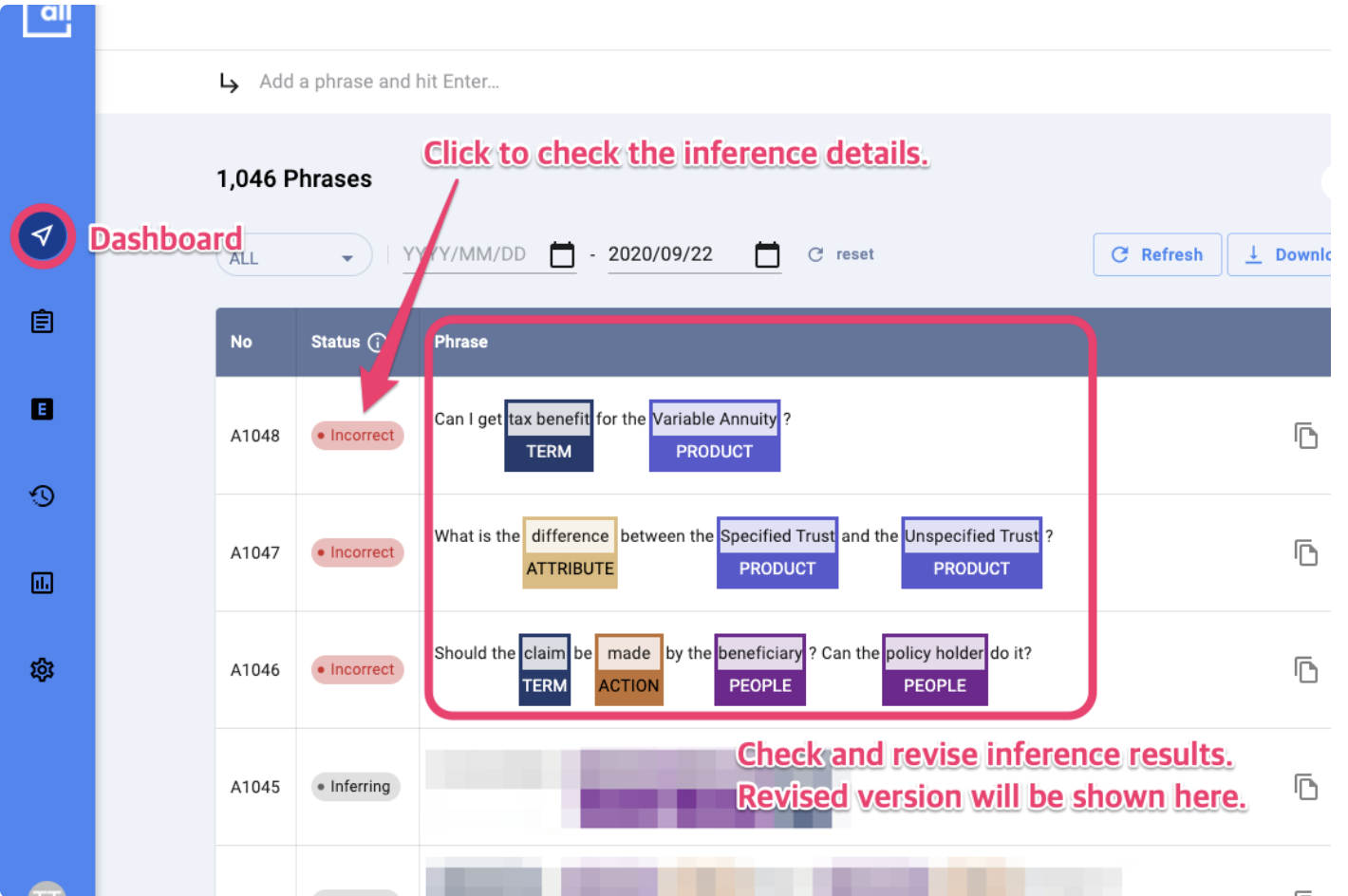
You can check the inference result in the Dashboard menu and the Inference menu. In both menus, you can find the inference result in the Phrase column.

#### Dashboard

<figure><img src="/files/CTTajX190uzYjTEWvvJq" alt=""><figcaption><p>NER Dashboard > </p></figcaption></figure>

Unlike the Text Classification or Sentiment Analysis, you can revise the inference result in the Phrase column under the Dashboard menu. Drag to select the keyword to create a new named entity, or mouse over and click the X icon on an existing entity to delete it.

In the Dashboard menu, the Phrase column will show the revised result if you make any revision. It means that each phrase in the table can be either an original inference result or a revised one. If you want to check out the original result after a revision, click the status in the Status column.&#x20;

<img src="/files/kMRElC02vEtKOSWNMjcf" alt="" data-size="original">

#### Inference

In Inference menu, the result shown is always the original inference result regardless of your revision.  If you click the exclamation mark under the Diff column, you can see the detailed information including the inference result, manually corrected answer, etc. The exclamation mark appears as blue if the inference result is the same with the correct answer and red if not.

<figure><img src="/files/79aqDQcxYXLepMeMZL9a" alt=""><figcaption><p>NER Inference Menu</p></figcaption></figure>

## Review Analysis

You can check the inference result both in Dashboard menu and the Inference menu. Check out the Review column under the Dashboard menu and the Inference column under the Inference menu. Please note that there is no separate Status column in the Review Conversion dashboard.

#### Dashboard

<figure><img src="/files/L4IOVukMo7HZsD5Kjy0m" alt=""><figcaption><p>Review Amalysis Dashboard </p></figcaption></figure>

In the Dashboard menu, you can **check the inference result and revise it**. Click the + button to add a new review or to change the score of the existing reviews. To add different ratings than -2 to 2, click the + button and input the number under the 'Sentiment' field, then train a new model with the phrase's training toggle on. You can also remove an existing review by clicking on the X icon on the review.

<figure><img src="/files/SBfHcUladwAdKeQupHop" alt=""><figcaption><p>Review Analysis Dashboard > Check keywords by category</p></figcaption></figure>

In the Phrase column, you can check keywords by category, which are basis for the inference result. You can **check the keywords by category in detail** by clicking the eye-shaped icon.

#### Inference

<figure><img src="/files/jhO5apiIZTazba21goYv" alt=""><figcaption><p>Review Analysis Inference</p></figcaption></figure>

In the Inference menu page, you can see both **the revised result and the original inference result in the table**. The revised results are under the Tagged column with red text for any revision made, and the original inference result under the Inference column.

## Tree Classification

You can check the inference result both in Dashboard menu and the Inference menu. Check out the Category column under the Dashboard menu and the Inference column under the Inference menu.&#x20;

{% hint style="warning" %}
Please note that there is no separate Status column in the Tree Classification dashboard.
{% endhint %}

#### Dashboard

<figure><img src="/files/6BhhRM3YFRm11AUQikXf" alt=""><figcaption><p>Tree Classification Dashboard > Tune inference result</p></figcaption></figure>

In the Dashboard menu, you can check the inference result and revise it. Click on an existing category to edit and change the inferenced result. To add another category, click the + button and input the category and value desired, then train a new model with the phrase's training toggle on. You can also remove an existing category by clicking on the X icon next to it.

<figure><img src="/files/pOWXCGvZAn0IxqiM7LnG" alt=""><figcaption><p>Tree Classification Dashboard > Edit category</p></figcaption></figure>

Edit an existing category by clicking on it and assign a value or revise the inferenced value. Click "Submit" when finished

#### Inference&#x20;

<figure><img src="/files/pnyg2W48zkLTgmLDL32y" alt=""><figcaption><p>Tree Classification Inference</p></figcaption></figure>

In the Inference tab, you can see both the revised result and the original inference result in the table. The revised results are under the Tagged column with red text for any revision made, and the original inference result under the Inference column.


---

# Agent Instructions: Querying This Documentation

If you need additional information that is not directly available in this page, you can query the documentation dynamically by asking a question.

Perform an HTTP GET request on the current page URL with the `ask` query parameter:

```
GET https://docs.allganize.ai/nlu-api-dashboard/model-training/evaluate-and-tune.md?ask=<question>
```

The question should be specific, self-contained, and written in natural language.
The response will contain a direct answer to the question and relevant excerpts and sources from the documentation.

Use this mechanism when the answer is not explicitly present in the current page, you need clarification or additional context, or you want to retrieve related documentation sections.
