> For the complete documentation index, see [llms.txt](https://docs.allganize.ai/allganize-alli-works-userguide-en/llms.txt). Markdown versions of documentation pages are available by appending `.md` to page URLs; this page is available as [Markdown](https://docs.allganize.ai/allganize-alli-works-userguide-en/security.md).
# Security
**Security** By clicking the tab, you can configure the dashboard, Alli Works, API IP, download IP whitelists, and password policies.
Before configuring, remember that if you set a whitelist, access will be restricted to only the configured values (for example, IP addresses) and all other values will be denied.
**Dashboard Whitelist**
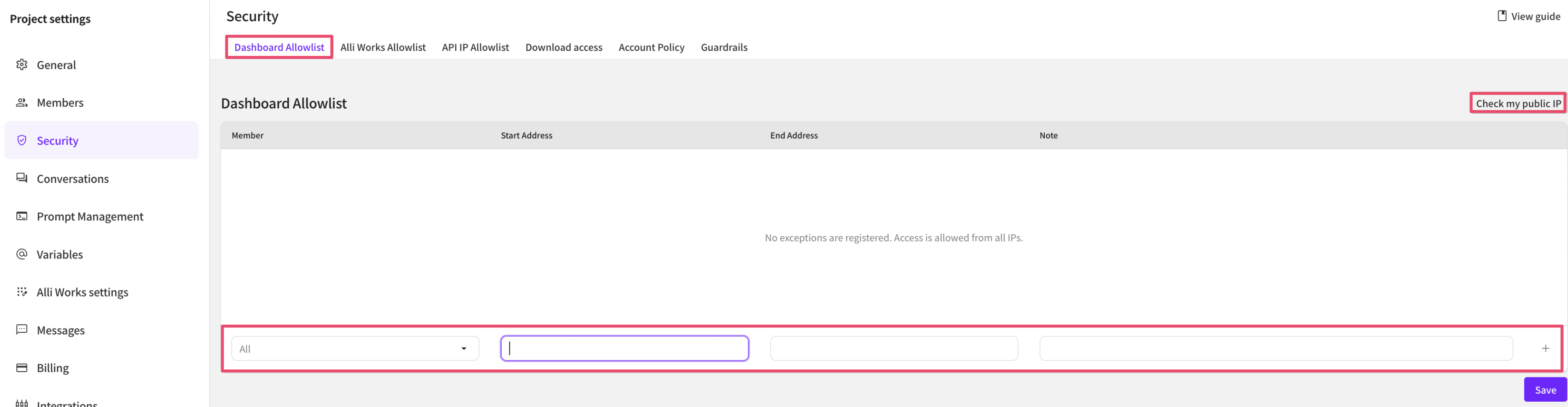
For security, you can set a dashboard whitelist to allow access to the Alli dashboard (admin page).
Enter the IP range to add to the whitelist and click the '+' button to add it. You can also specify particular agents to which this whitelist will apply. If not specified, it will apply to all agents.
Be careful: if you save without adding your current IP to the list, access from the dashboard will be blocked. To check your current public IP, click the 'Check my public IP' button.
**Alli Works Whitelist**
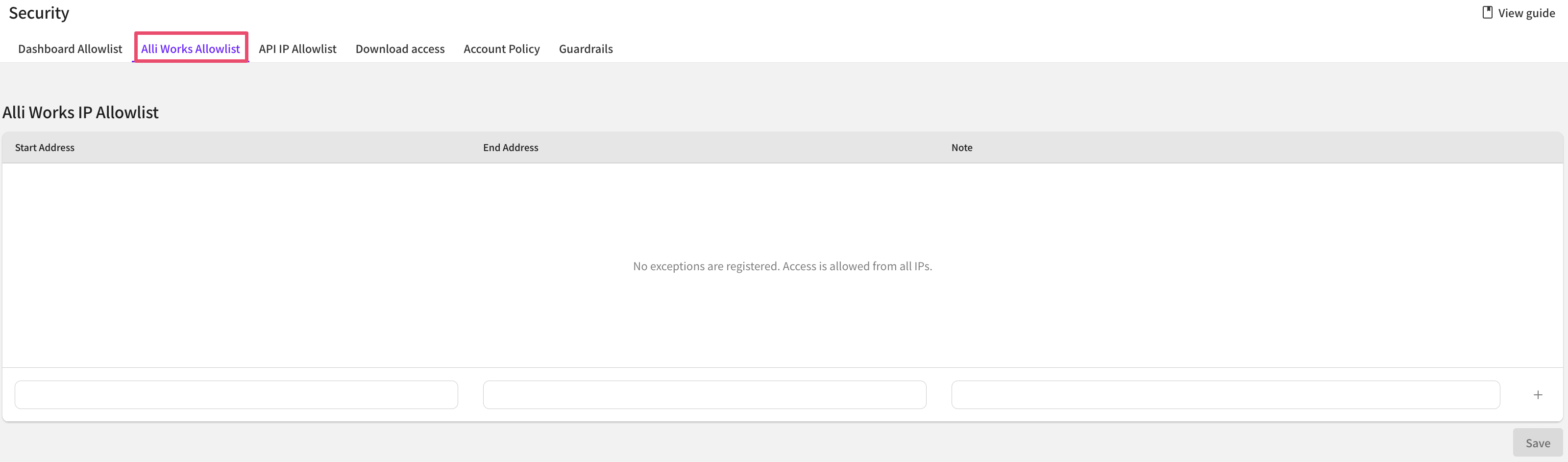
The Alli Works whitelist allows you to configure an IP whitelist.
* Enter the IP range to add to the whitelist and click the '+' button to add it.
* Be careful: if you save without adding your current IP to the list, access from the dashboard will be blocked.
**API IP Whitelist**
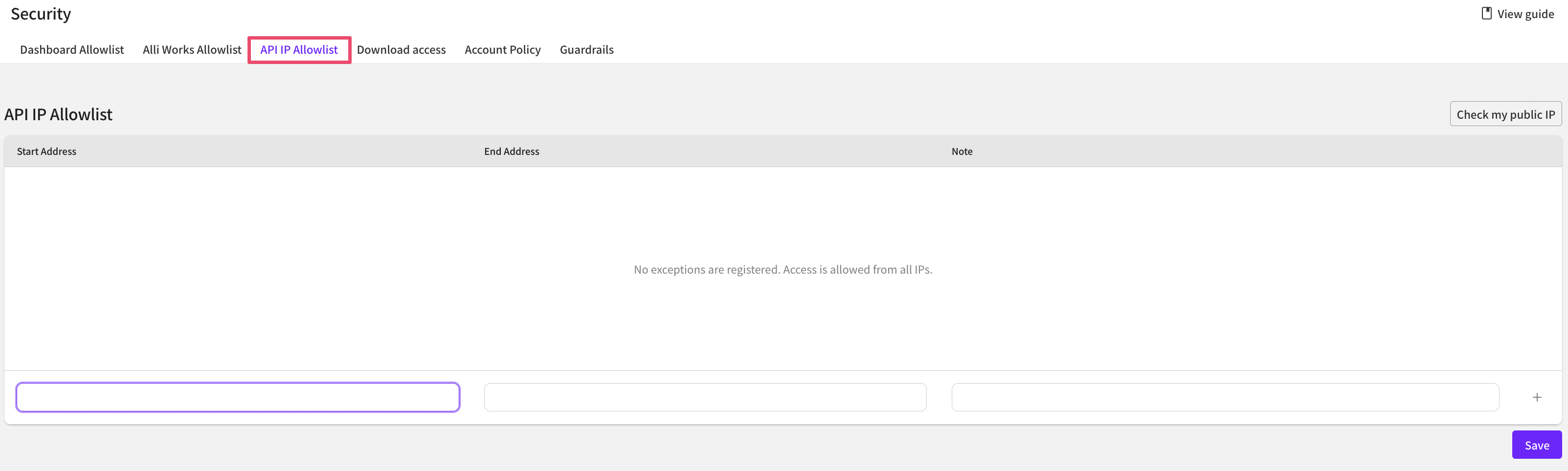
If you set an API IP whitelist, API calls will be allowed only from the configured IP ranges. API calls from outside the configured ranges will be blocked.
1. The API IP whitelist menu is located in the Security tab of Settings.
2. These are the IP ranges registered in the whitelist. You can delete them by clicking the '-' button.
3. Enter the IP range to add to the whitelist here and click the '+' button to add it.
4. Save changes.
**Download Management**
**Download purpose and reason**
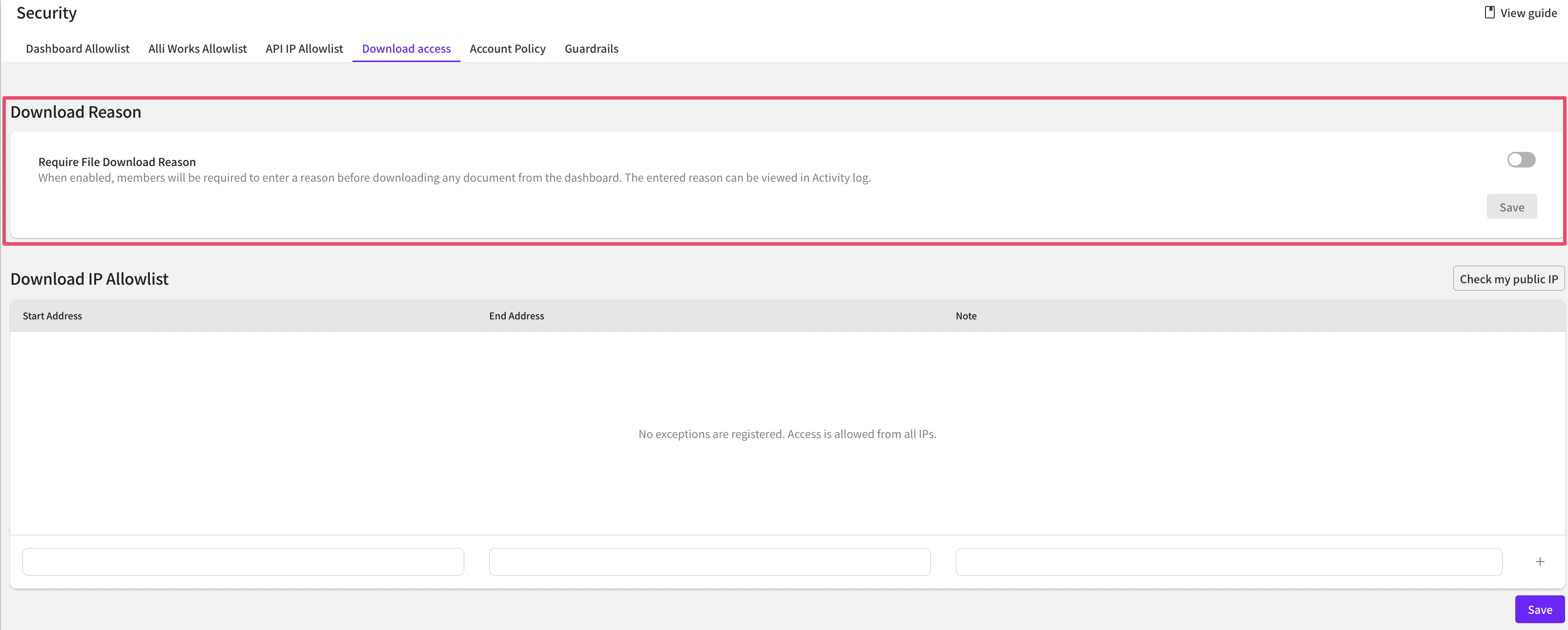
This feature is an option that can require members to enter the purpose and reason when downloading files from the dashboard. It helps ensure transparency of download actions for security and audit purposes.
You can find it under Settings > Security > Download Management. The default setting is OFF (disabled).
* **Enable option**
* Turn the download purpose and reason option ON, then click the Save button.
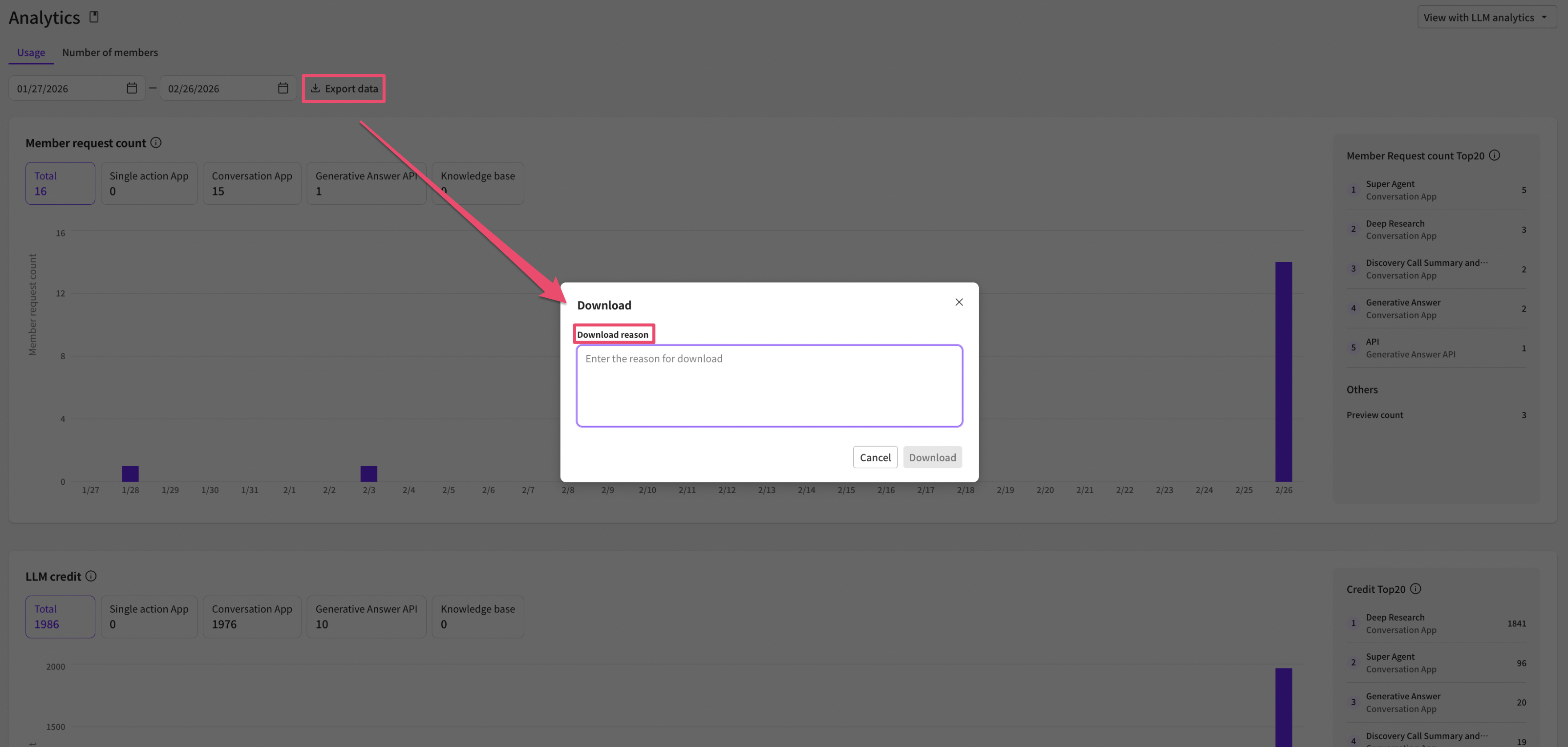
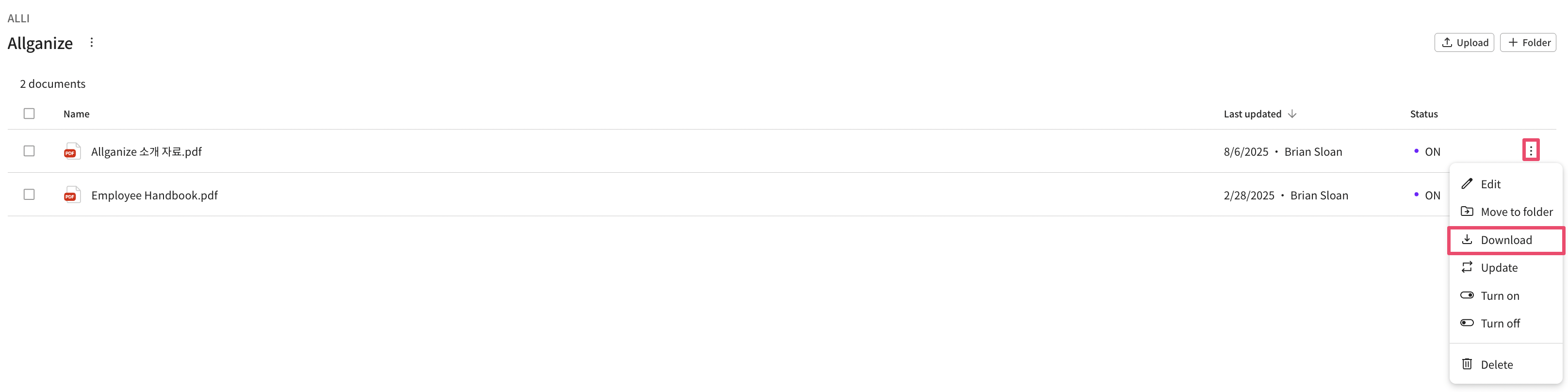
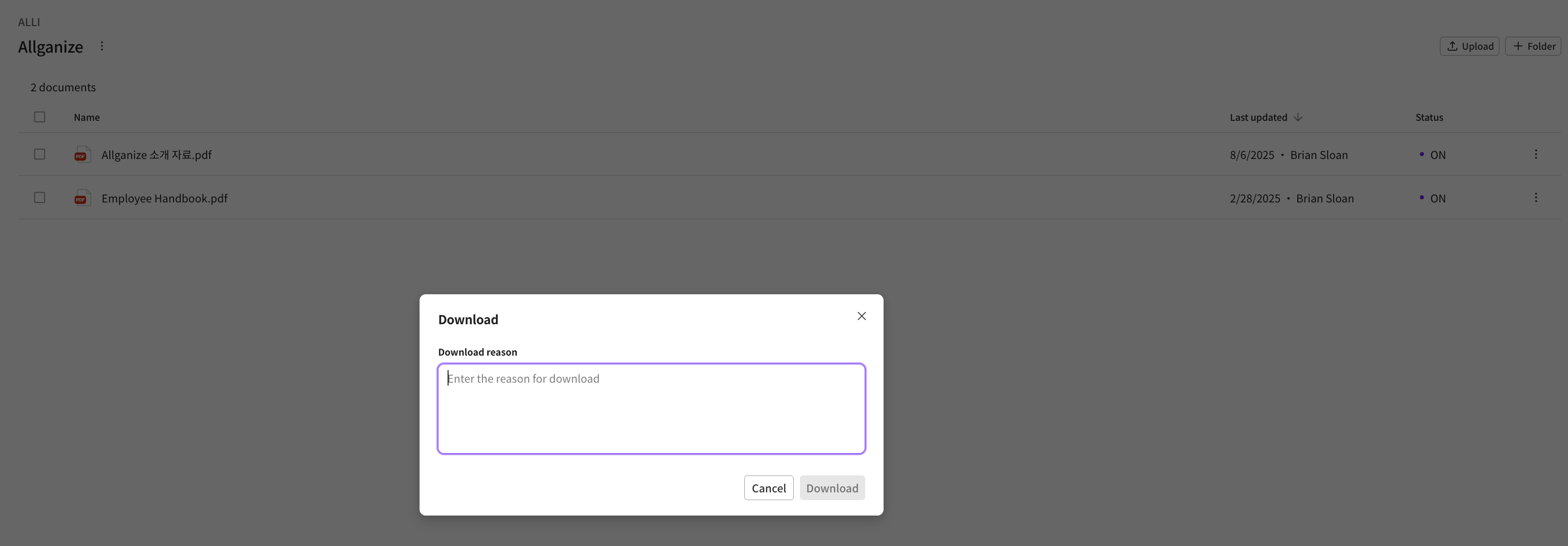
When the feature is enabled, a field for entering the reason will appear when a member performs a download action within the dashboard.
At that time, the download button will be enabled only after the member enters a reason, and the reason can be up to 140 characters.
* Document download
* Download analysis content
* Download conversation history
* Supports all download actions within the dashboard, such as member information downloads.
> However, note that if a file is downloaded by clicking a link inside a Q\&A or extractive answer, a mere click on the link cannot distinguish whether the action is a file download or just a navigation to a website, so it is not considered a download action and is not covered by this option.
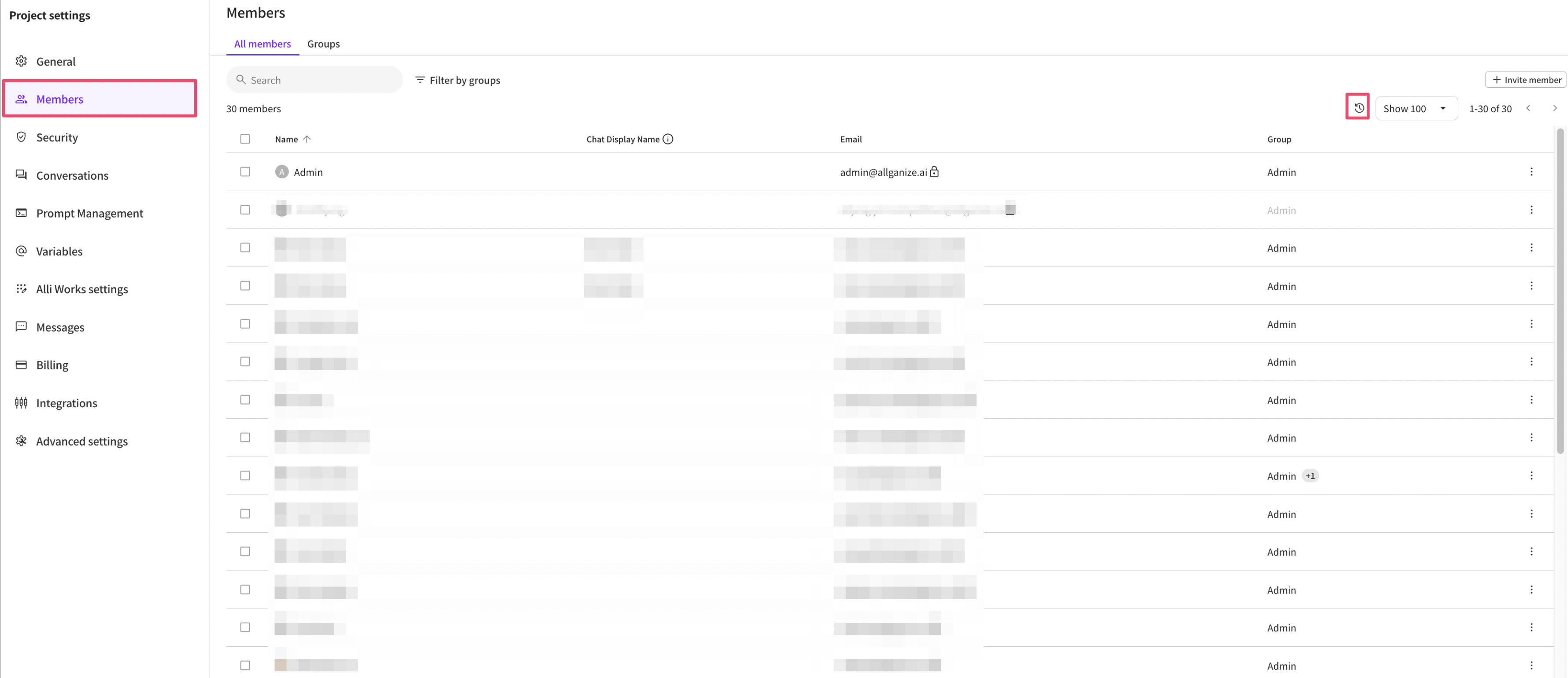
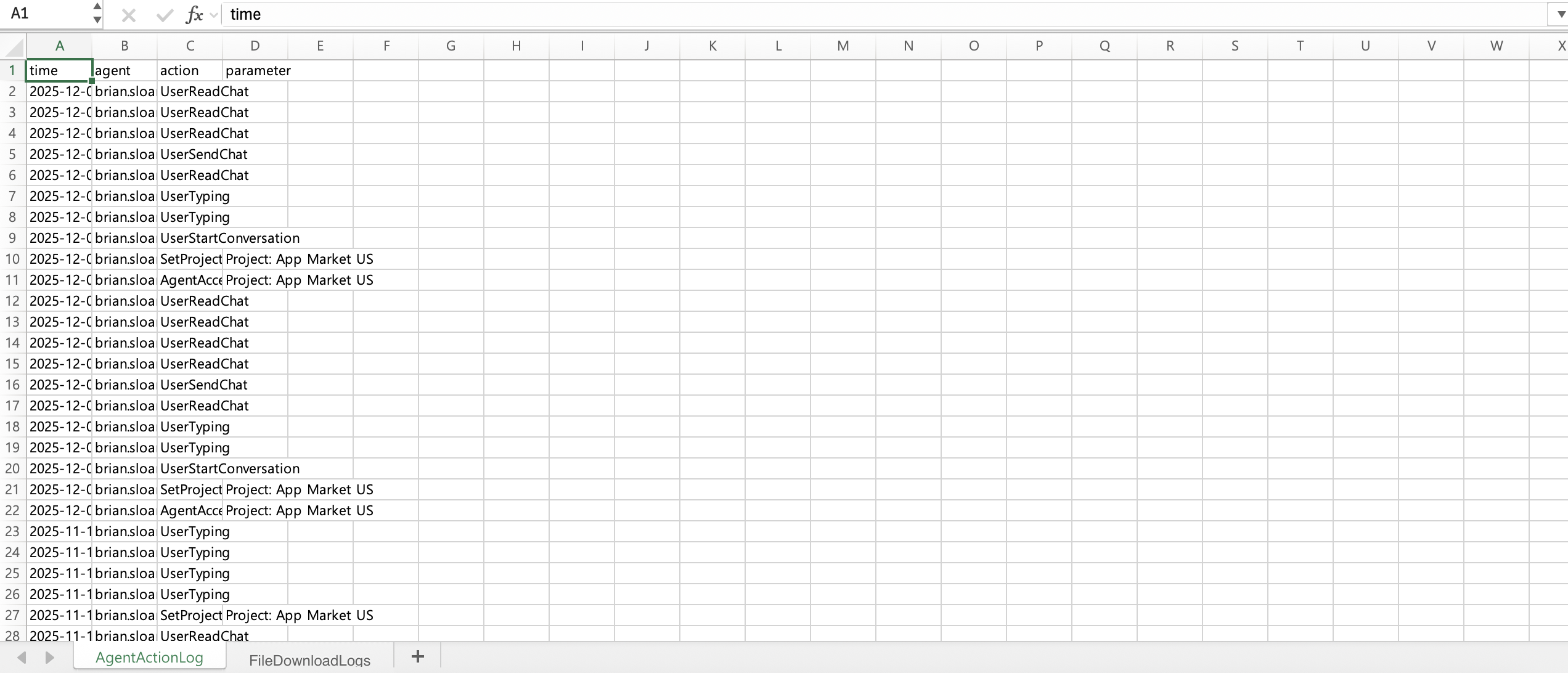
Download reasons entered by members can be viewed at the following path:
* Settings > Members > Activity Log
`KnowledgeBaseDownloadLogs` Details and logs will be recorded in the sheet.
Column nameDescription
Time
Time the download was performed
Agent
Email address of the member who performed the download
File name
Name of the downloaded file
Download Reason
Entered download reason
**Download IP Whitelist**
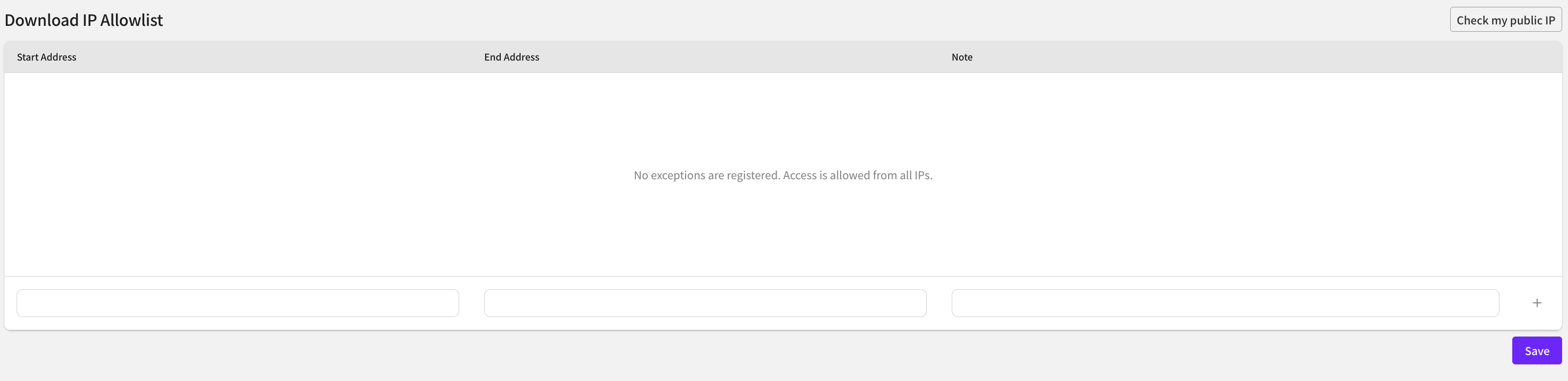
If you set a download IP whitelist, files can be downloaded from the SDK and dashboard only within the configured IP ranges. **This setting does not apply when downloading Q\&A content or documents from the knowledge base.** Files attached to Q\&A, files shared during conversations, and files stored in variables are subject to this setting.
Files cannot be downloaded from outside the configured ranges.
1. The download IP whitelist menu is located in the Security tab of Settings.
2. These are the IP ranges registered in the whitelist. You can delete them by clicking the '-' button.
3. Enter the IP range to add to the whitelist here and click the '+' button to add it.
4. Save changes.
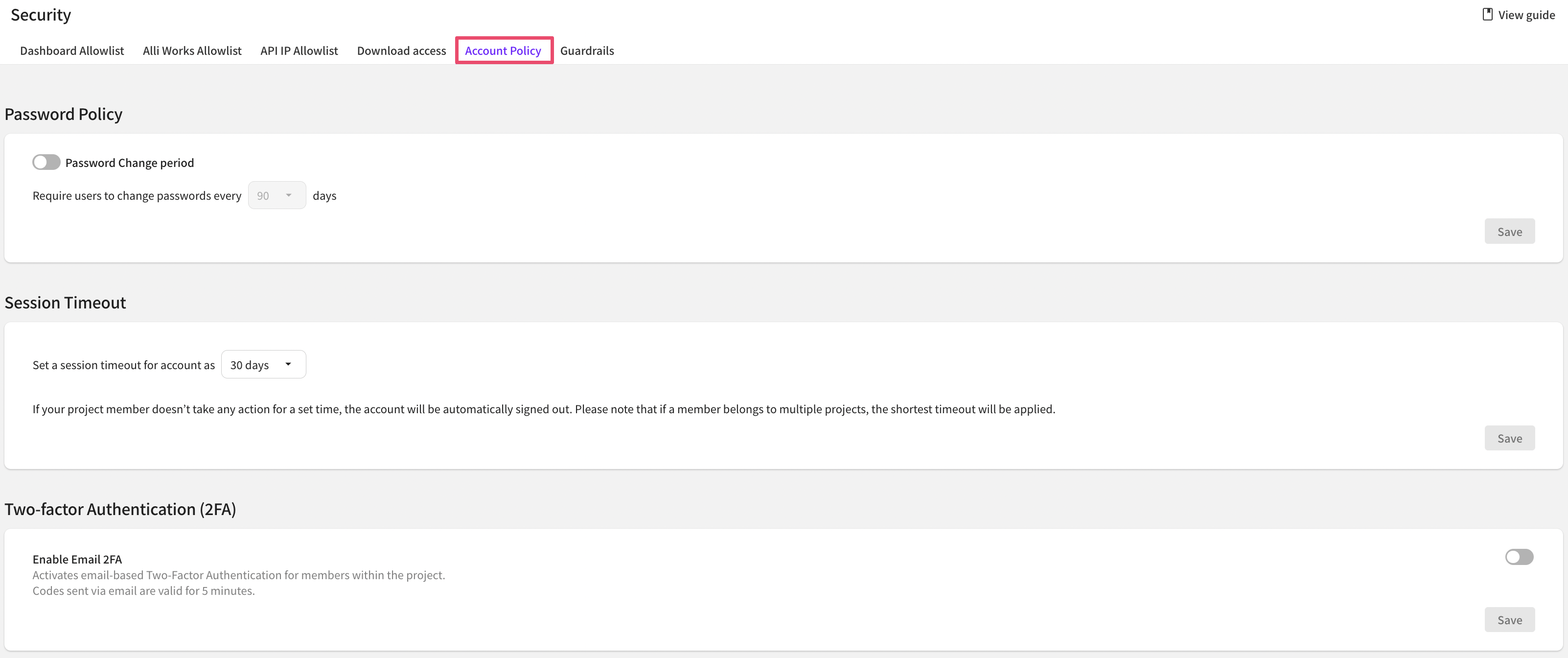
**Account Policy**
#### 1. Password policy settings
If you set a password policy, all agents will receive a notification upon Alli login when their password change deadline approaches. After the deadline, they will be directed to a password update page, and if they do not update their password, they will not be able to log in.
**How to set**
1. Turn the password policy on or off.
2. Set the password change interval.
3. Save changes.
***
#### 2. Session timeout settings
With the session timeout feature, project members will be automatically logged out if they do not perform any actions for a specified period.
**How to set**
1. Set the session timeout duration. (Default: 30 minutes)
2. Save changes.
***
#### 3. Two-factor authentication (2FA) settings
If two-factor authentication (2FA) is enabled, project members will undergo email-based verification when logging in.
**How to set**
1. Switch 2FA ON or OFF. (Default: OFF)
2. Save changes.
**it detects only when it ends with that phrase.**
* If 2FA is not enabled, it will remain OFF by default.
* If email 2FA is ON for any of the projects that include the agent attempting to log in, that agent must complete 2FA verification when logging in.