> For the complete documentation index, see [llms.txt](https://docs.allganize.ai/allganize-alli-works-userguide-en/llms.txt). Markdown versions of documentation pages are available by appending `.md` to page URLs; this page is available as [Markdown](https://docs.allganize.ai/allganize-alli-works-userguide-en/security/guardrail-features.md).
# Guardrail features
**What is the guardrail feature?**
A guardrail is a security feature that checks and blocks user-input messages in advance if they contain harmful or inappropriate content. Detected problematic content is not passed to the LLM, providing a safer and more reliable service environment.
#### Types of guardrails
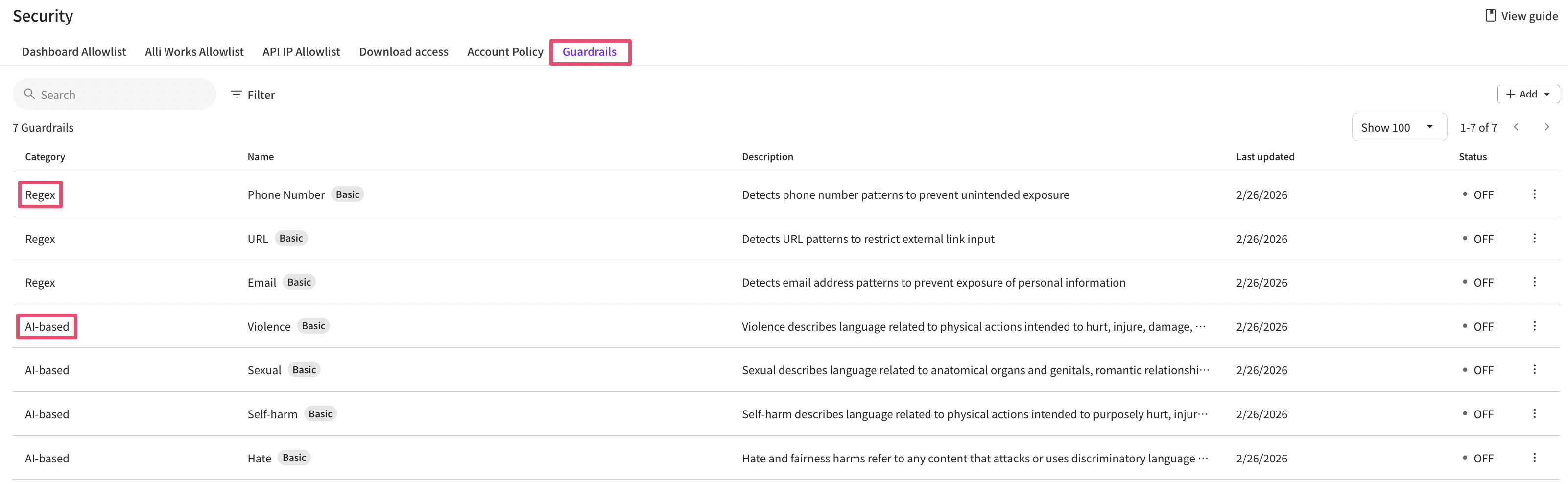
At Alli, we offer the following three types of guardrails.
**1. Keyword-based guardrail**
Pre-registered **specific words or phrases**are used as the basis to detect content.
* Usage examples: specific words, banned words, expressions prohibited by internal policy, etc.
* Keywords are not provided by default; to add new keywords you must create a new guardrail.
***
**2. Regular expression (Regex)-based guardrail**
Using regular expressions (Regex) **to detect input values of a specific format**.
* Usage examples: phone numbers, resident registration numbers, specific code patterns, etc.
* Regular expressions provided by default in Alli cannot be modified; only activation/deactivation can be adjusted.
* If additional edits or new patterns are needed, you must create a new guardrail.
***
**3. AI-based guardrail**
The input content is **automatically analyzed by AI**to determine whether it is harmful. By category, **verification strength settings**are available.
**Categories**
* Violence
* Sexual content
* Self-harm
* Hate
AI-based guardrails cannot be newly created; only the provided items can be adjusted and edited.
#### How to add a keyword-based guardrail
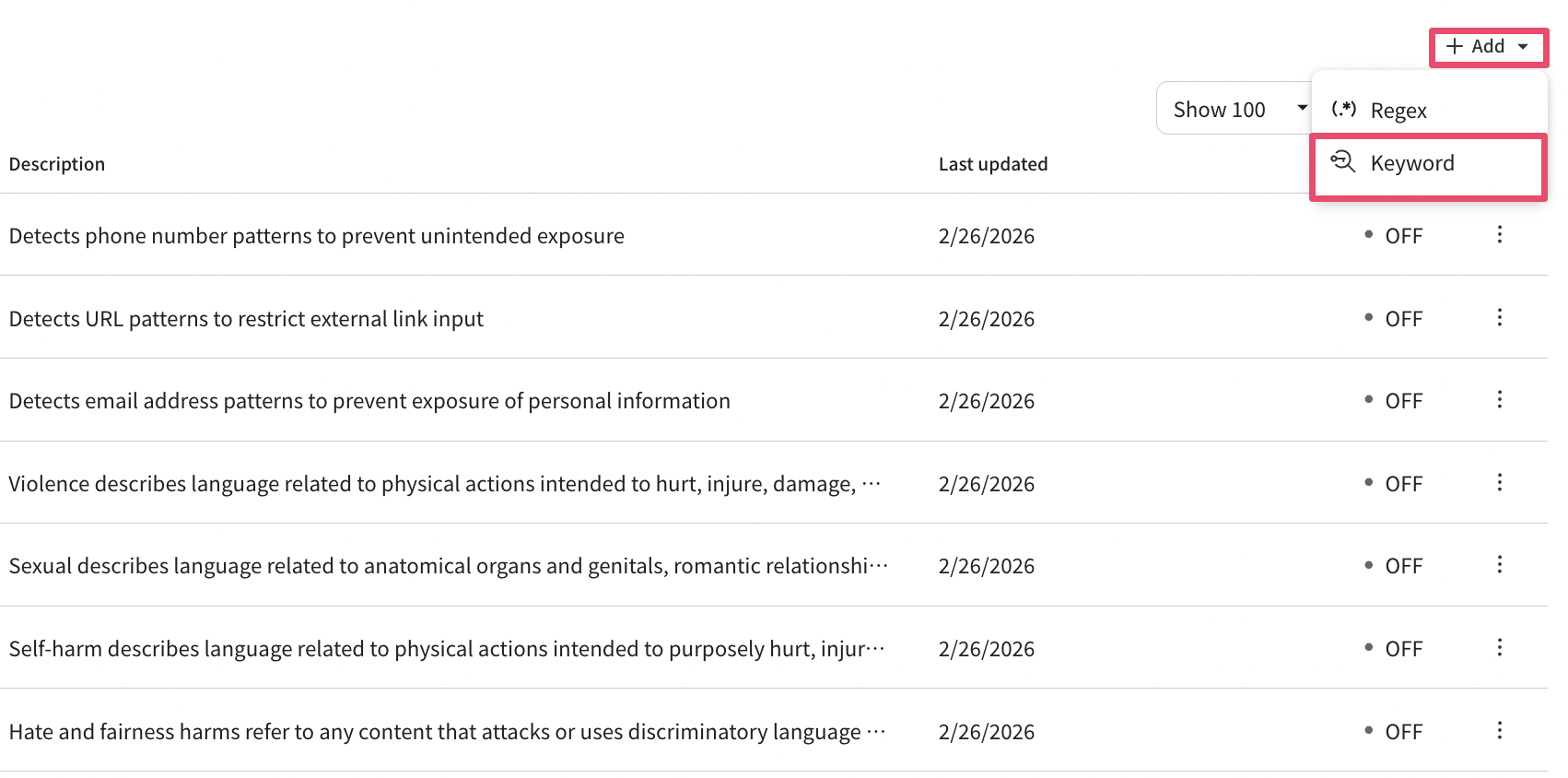
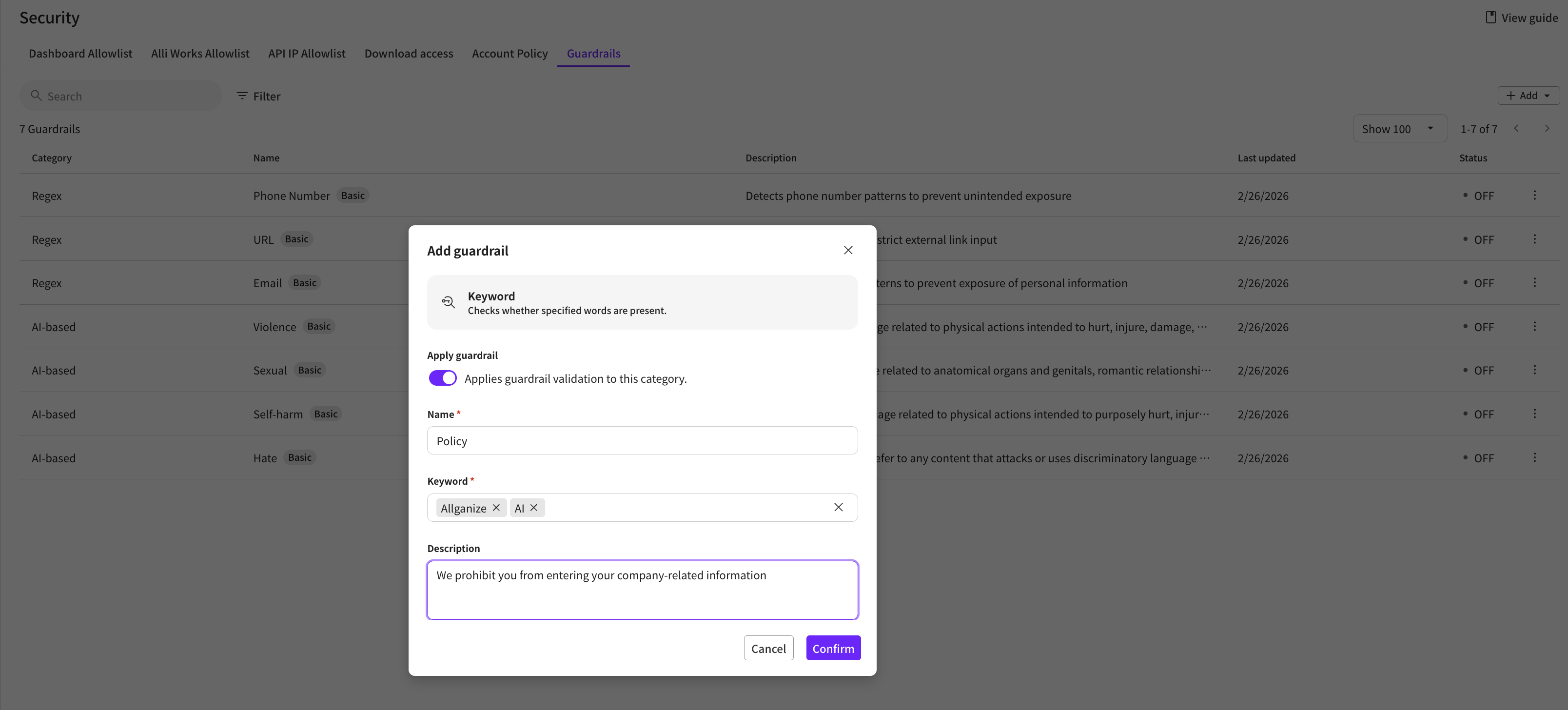
1. Click the + Add button at the top right and select the keyword-based option.
1. Choose whether to activate the guardrail.
* When activated, the guardrail will be applied to apps within the project that use the LLM.
1. Enter a name for the guardrail.
2. Register the keywords to block.
* You can register multiple keywords at the same time. There is no limit to the number of keywords you can register.
1. Enter a description for the guardrail. (Optional)
2. Click the Confirm button.
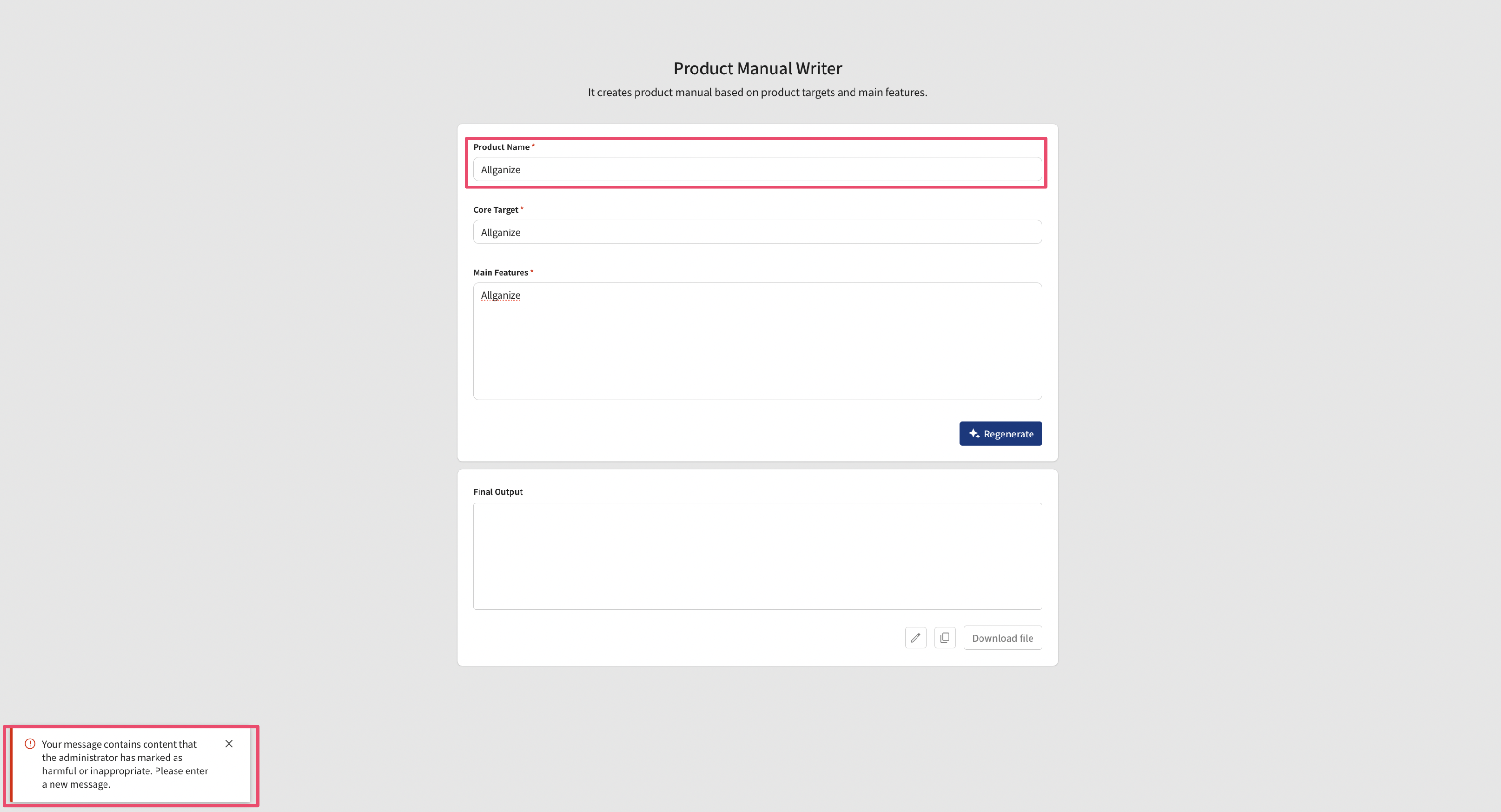
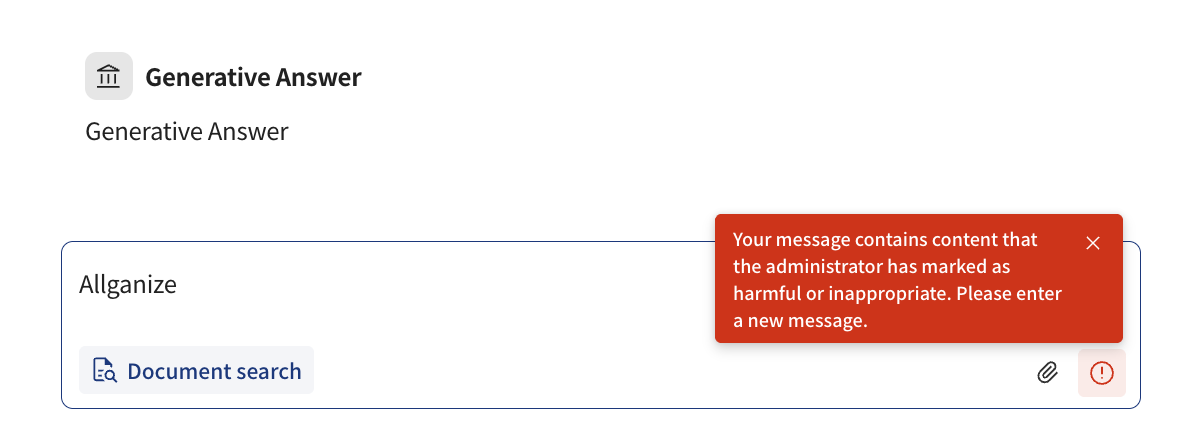
1. Actual behavior can be verified during app testing and app execution. If a pre-specified keyword is detected, the send button is disabled, a warning message is displayed, and the user is prompted to enter a new message.
#### How to edit and add regex-based guardrails
**Edit the default provided regular expressions**
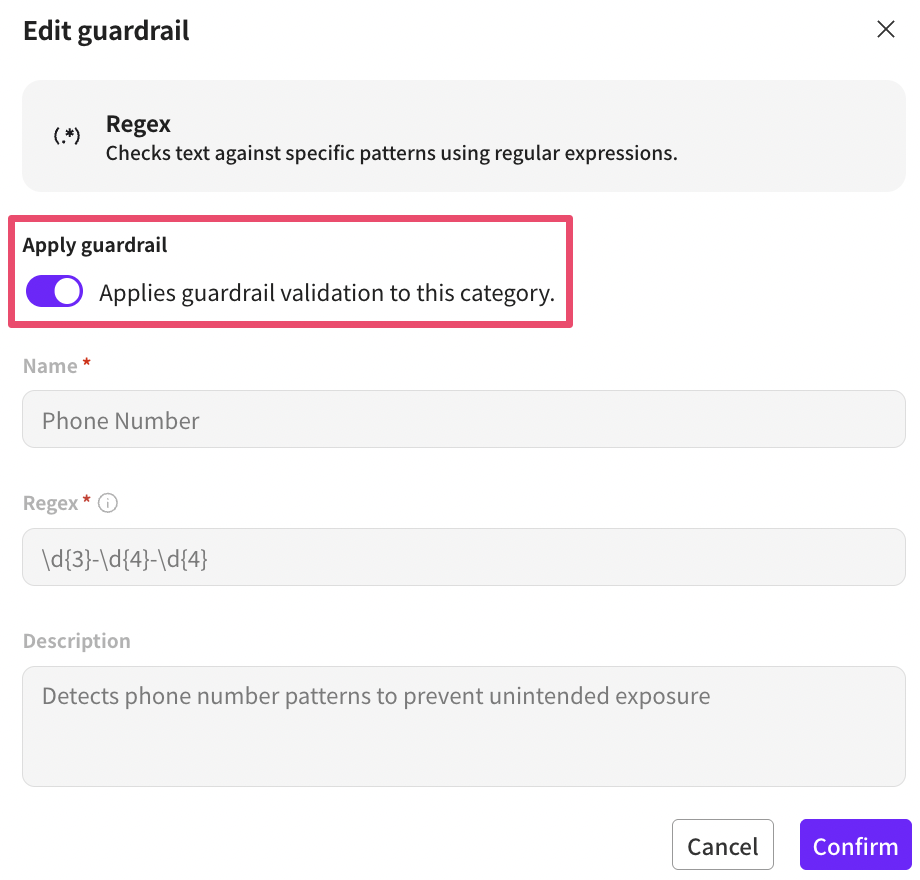
Alli provides a total of three regular expression patterns by default. Default provided regular expressions can only be selected for activation or deactivation.
1. To activate a specific default regular expression, click the Edit button.
1. After choosing whether to activate the guardrail, press the Confirm button to apply the settings to the project.
**Add a regular expression**
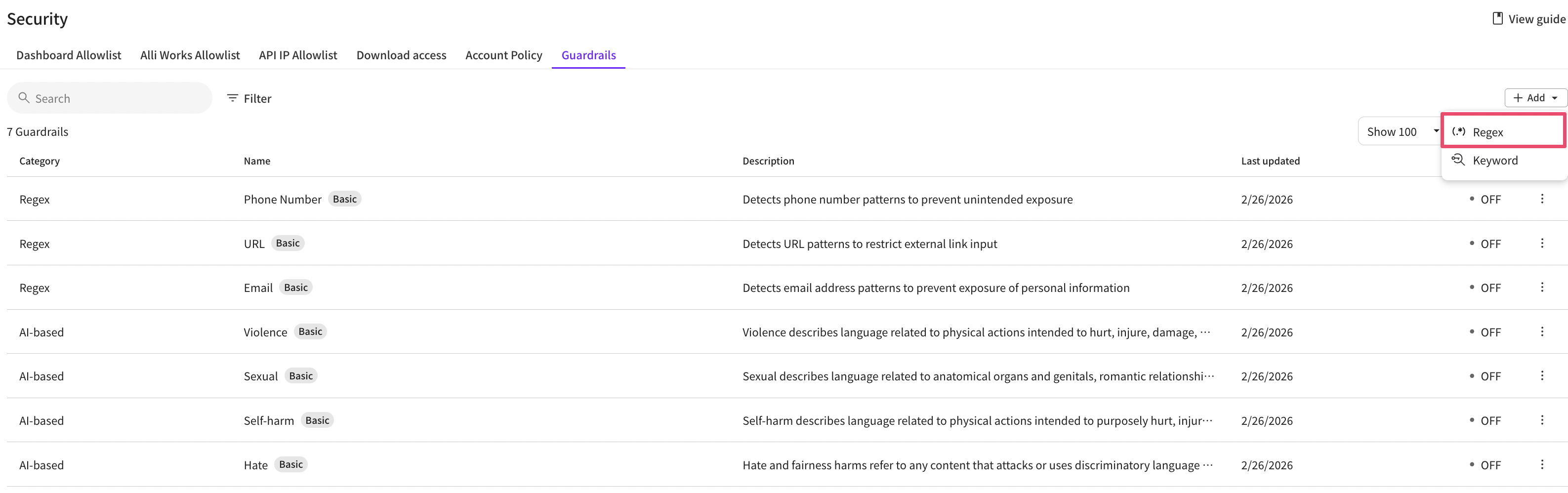
1. Click the + Add button at the top right and select the regular expression-based option.
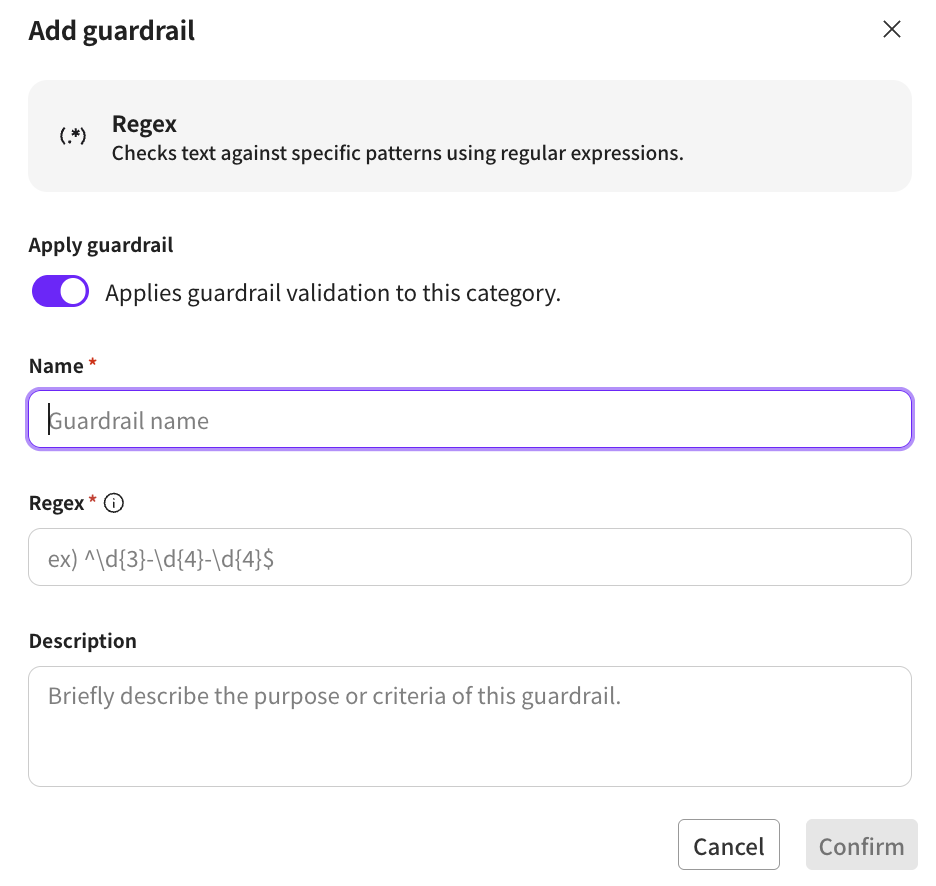
1. Choose whether to activate the guardrail.
* When activated, the guardrail will be applied to apps within the project that use the LLM.
1. Enter a name for the guardrail.
2. Register the regular expression to block.
* [Regular expression validation services](https://www.regextester.com/) etc., to write the regular expressions you want to use internally.
***
**Examples of using regular expressions**
Regular expressions (Regex) are used to detect or filter strings with specific patterns. When setting a guardrail, if an input message matches a regular expression pattern, that rule is applied.
**1. Check whether a specific word is included**
```
Banned word
```
* In a message, `Banned word`detects if the string is included.
**2. Detect if any one of multiple words is included**
```
(curse1|curse2|curse3)
```
* `curse1`, `curse2`, `curse3` Detects if any one of them is included.
**3. Detect regardless of case**
```
(?i)badword
```
* `badword`, `BadWord`, `BADWORD` etc., detected regardless of letter case.
**4. Detect number patterns (e.g., phone numbers)**
```
\d{3}-\d{4}-\d{4}
```
* `010-1234-5678` Detects phone numbers in that format.
**5. Detect email addresses**
```
[a-zA-Z0-9._%+-]+@[a-zA-Z0-9.-]+\.[a-zA-Z]{2,}
```
* Detects common email address formats.
**6. When the message starts with a specific phrase**
```
^I would like to make an inquiry.
```
* If the message `starts with`I would like to make an inquiry.
**it detects only when it starts with that phrase.**
```
7. When the message ends with a specific phrase
```
* If the message `Thankkyou$`
**it detects only when it ends with that phrase.**
* Notes **Regular expressions**operate based only on pattern matching without understanding context.
* Be careful when using overly broad patterns, as normal messages may also be detected.
* Regular expressions can represent a wide variety of patterns, so it is helpful to learn usage by referring to real examples. We recommend looking up regex example resources if needed.
***
1. Enter a description for the guardrail. (Optional)
2. Click the Confirm button.
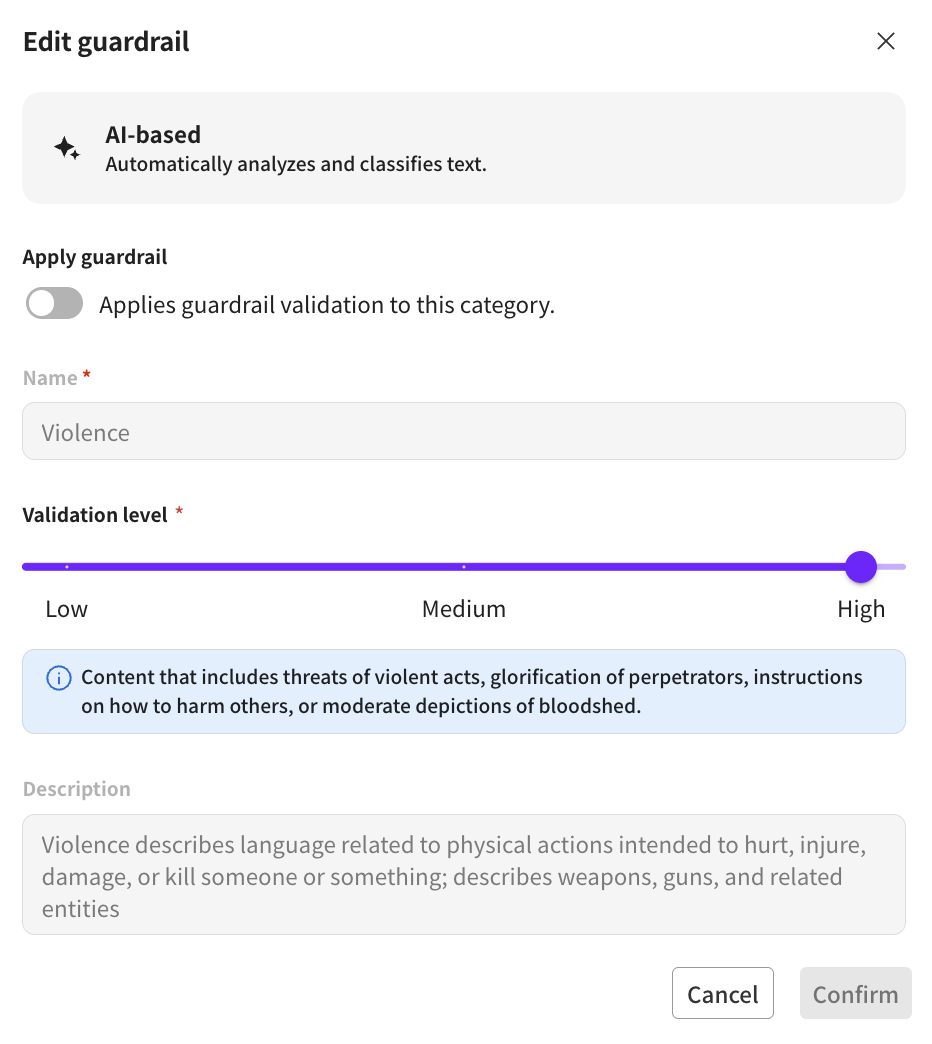
**How to edit AI-based guardrails**
AI-based guardrails cannot be newly created; you can change settings for the four default provided categories.
1. Select the AI-based guardrail you want to edit.
1. Choose whether to activate the guardrail.
* When activated, the guardrail will be applied to apps within the project that use the LLM.
2. Verification strength can be chosen from Low / Medium / High, and this uses AI judgment criteria.
3. Click the Confirm button.
4. Depending on the verification strength set in advance for the AI-based guardrail, if the AI analyzes the message content and judges there is a possibility of policy violation, the message send button will be disabled and a warning message will be displayed. In this case, the user will be prompted to enter a new message. **Due to the nature of AI-based evaluation, judgments can vary depending on surrounding context, word combinations, or memory. Therefore, please note that results cannot be strictly dichotomized or guaranteed 100% accurate.**
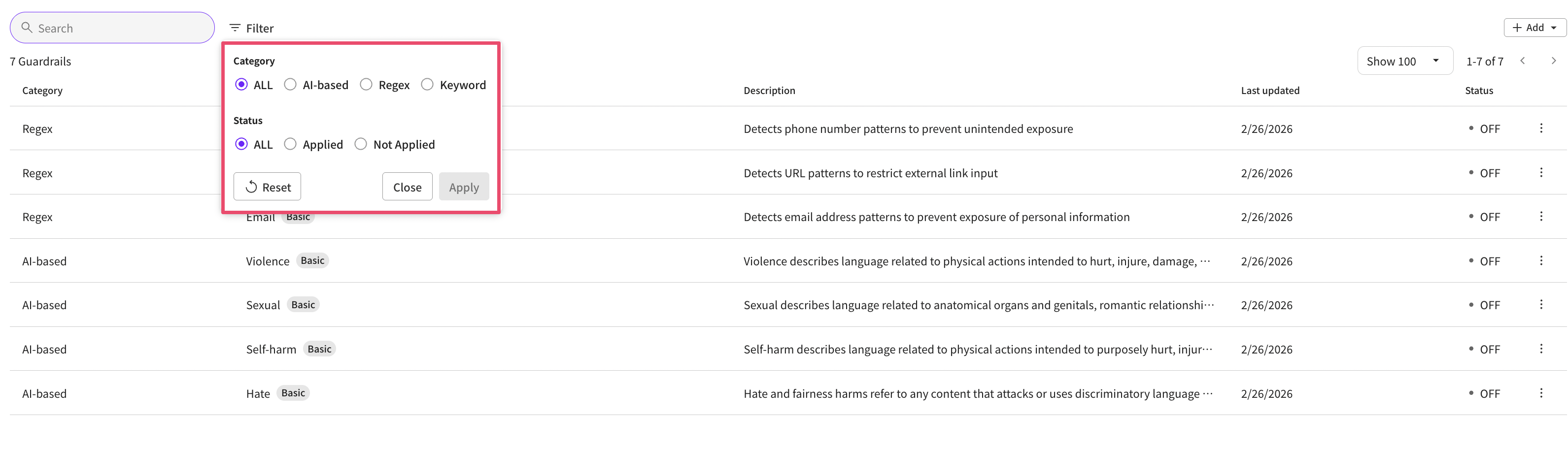
**Filter lookup**
1. You can use the filter feature to view guardrails separated by item.
2. You can also check which guardrails are applied and which are not applied within the project.
**Applicable scope**
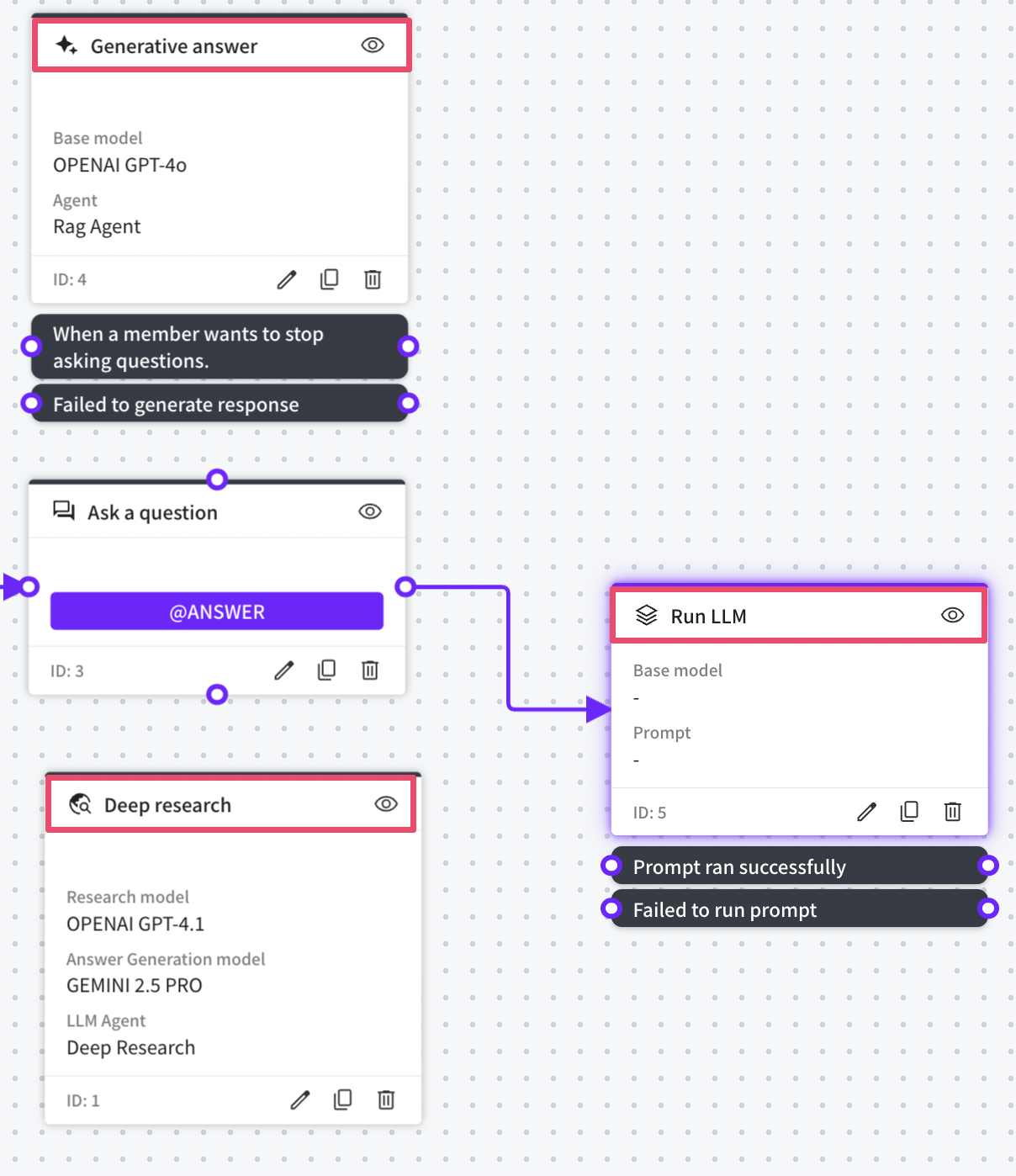
**Guardrails operate by detecting and filtering content at the moment messages are delivered to the LLM. Therefore, they are not applied at all nodes, but only at the specific nodes that actually call the LLM.**
For example, guardrails are applied in the following cases.
* Answer generation node When a user inputs a message and that message is sent to the model to generate a response
* Question node + LLM execution node When user input is received in a question node and then the model is called via an LLM execution node based on that content
* Deep research Research and analysis tasks where an internal LLM call occurs when a user inputs a message
Conversely, please note that guardrails do not operate on nodes where no LLM call occurs.