> For the complete documentation index, see [llms.txt](https://docs.allganize.ai/allganize-alli-works-userguide-en/llms.txt). Markdown versions of documentation pages are available by appending `.md` to page URLs; this page is available as [Markdown](https://docs.allganize.ai/allganize-alli-works-userguide-en/documents/create-folders-and-manage-permissions.md).
# Create folders and manage permissions
In Alli, you can create multiple subfolders in addition to top-level folders to manage documents more systematically. By setting up a folder structure and configuring access permissions per folder, departments or teams can view and edit only the documents they need, improving security and collaboration efficiency.
**Bulk upload via ZIP file**
If your company already uses an existing folder structure, you can upload it to Alli as-is.
* When you upload a ZIP file, the internal folder structure is automatically reflected.
* Documents are uploaded together, making initial setup simple.
> Example: If you upload a ZIP file containing department folders and subfolders, the folder tree will be created exactly as is.
**Create folders manually**
If you want to create and configure folders one by one yourself, follow the steps below.
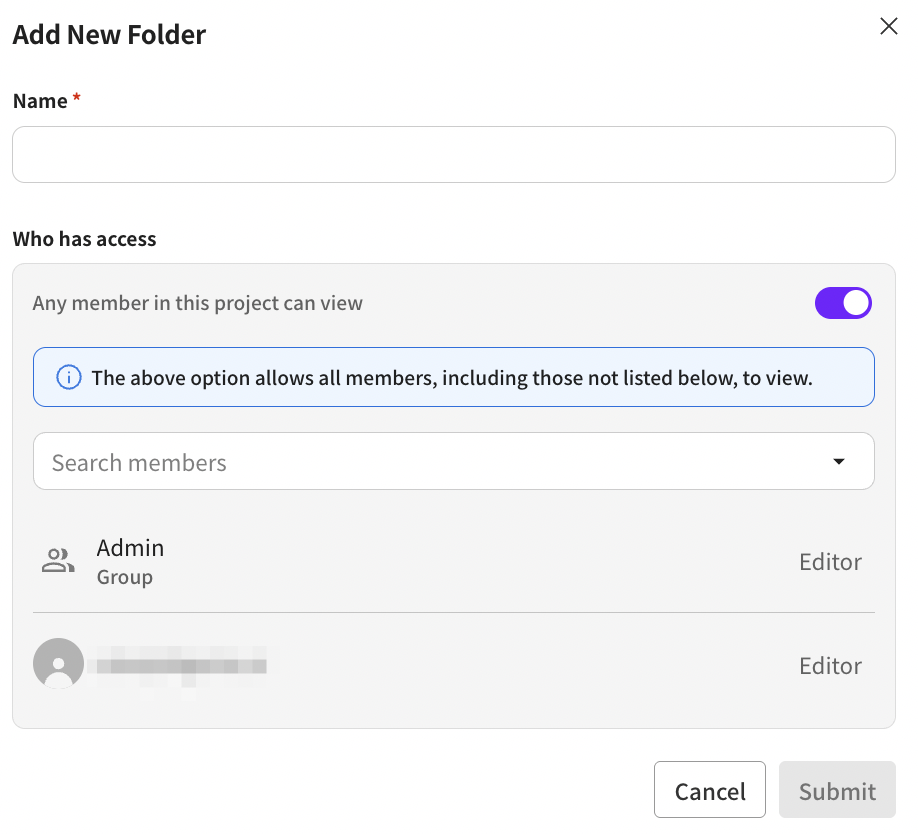
**Create top-level folder**
1. Enter the folder name.
2. Set the access permissions.
* The default is public to all members.
* If you turn off this option, you can grant view/edit permissions only to specific groups or individual members.
3. Permission settings are applied the same way when searching documents and generating answers.
**Example**
To create a folder to be used only by the HR department
* Turn OFF the 'All project members can view' option
* Select only the people in HR or the HR group → the folder will be accessible only to the HR department.
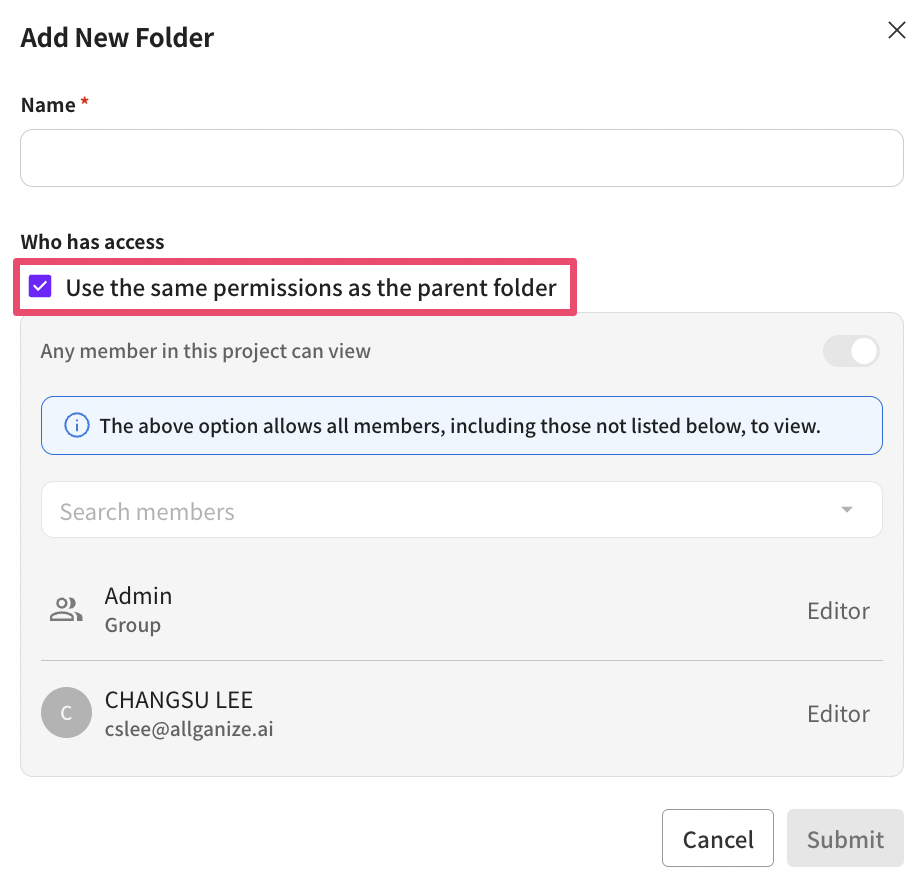
**Create subfolder**
Subfolders can be created inside a parent folder, and permissions can be set separately if needed.
1. Enter the folder name.
2. Choose how to set permissions
* **Use parent folder's permissions** (Default) → The parent folder's settings are applied as-is.
* **Set individual permissions** → You can set new permissions that apply only to the subfolder.
> Example: The marketing and design teams can share the same parent folder but be restricted to access only their own subfolders.
**Edit permissions of an existing folder**
**Edit existing folder**
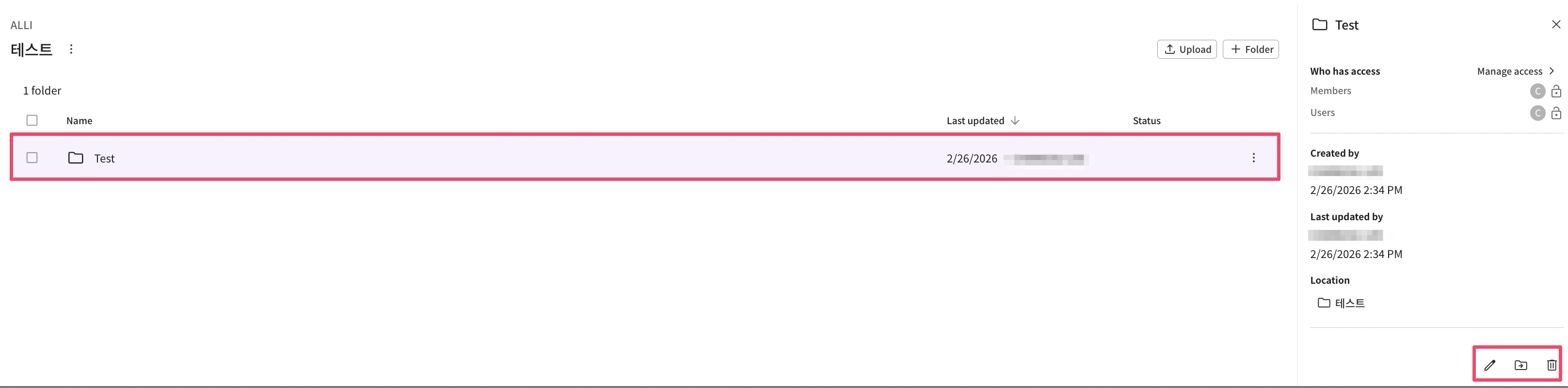
If you want to change the permissions of an already created folder, proceed as follows.
1. Select the folder whose permissions you want to modify.
2. Click the 'Manage access permissions' or 'Edit' button.
3. Assign new permissions or change existing ones.
* Can be set by group or by individual member
**Notes**
* Folder permissions apply equally to all document usage features such as document search and answer generation.
* Parent folder permissions can be applied to subfolders, but you can separate them if needed.
* Using group settings effectively makes permission management much easier.