> For the complete documentation index, see [llms.txt](https://docs.allganize.ai/allganize-alli-works-userguide-en/llms.txt). Markdown versions of documentation pages are available by appending `.md` to page URLs; this page is available as [Markdown](https://docs.allganize.ai/allganize-alli-works-userguide-en/documents/document-upload-and-permission-management.md).
# Document upload and permission management
**Document upload**
1. Select a folder After selecting the folder to upload the document to, click the 'Upload' button.
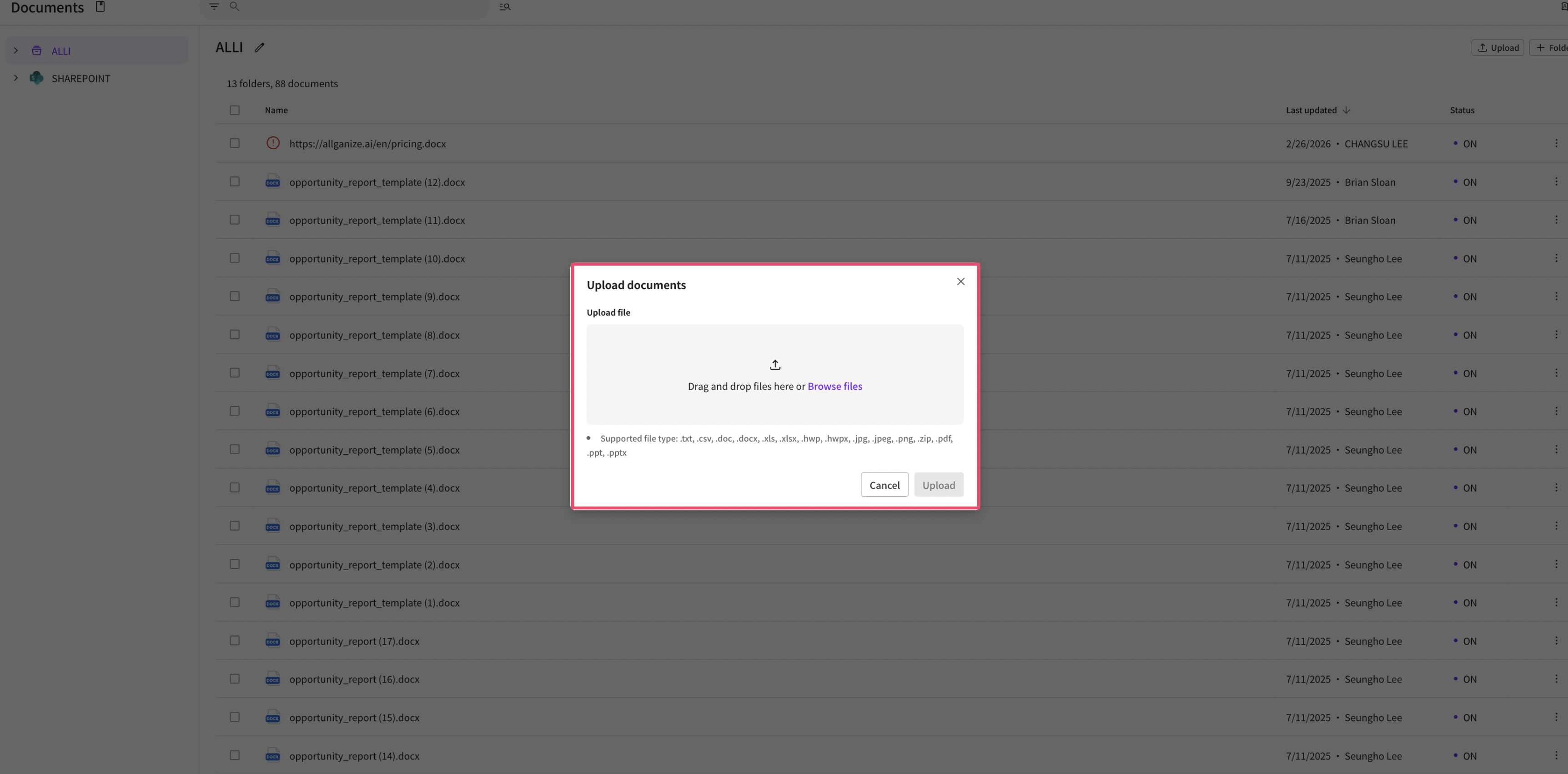
2. Select and upload files Click the 'Browse' button to select files, or drag & drop files to upload.
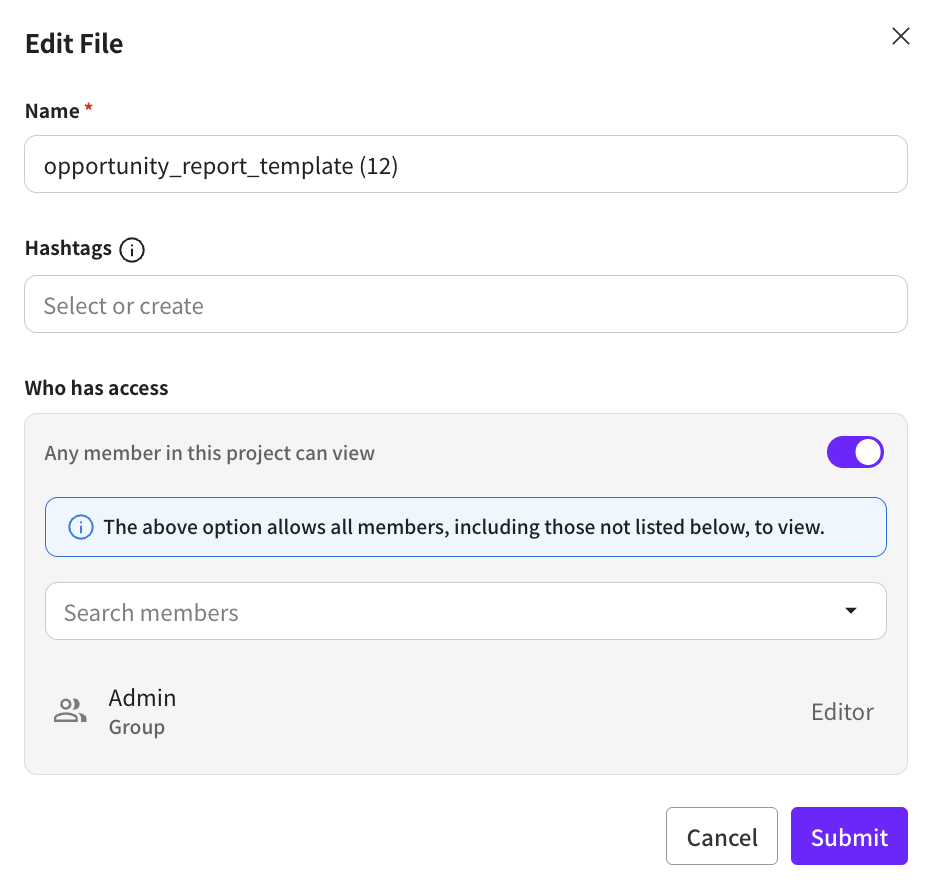
3. Edit file (optional) Click the 'Edit' button to rename the file, add hashtags, and set access permissions. You can edit the same way even after uploading. The editing details are explained below.
4. Apply edits and complete upload When editing is finished, click the 'Apply' button, then press the 'Upload' button to complete the upload.
**Edit file**
**1. Set filename and hashtags (can be edited after file upload)**
* **Filename** You can freely modify the filename to make the document easier to identify. For example: `2025_ProjectPlan_v2`
* **Hashtags** Set the document's main keywords as hashtags so they are easy to find when searching. For example: `#Proposal`, `#MarketingStrategy`, `#Report`
> Hashtags help group related documents and make them quick to find.
#### Set access permissions
Flexibly set document viewing and editing permissions to enhance security during collaboration and improve document management efficiency.
**Permission types**
Permission typesDescription
**Viewer**
Can view document content and metadata, and search (cannot edit)
**Editor**
Can view, edit, and delete the document
**Basic principles for access permissions**
* **Default settings**
* Default: Public to all members, edit permissions granted only to the admin group.
* If you turn off the option for all members of this project to view, you can grant view and edit permissions only to specific members.
Permission settings can follow the parent folder's permissions or be set individually for a document.
How to setDescription
**Use parent folder permissions (default)**
The parent folder's permissions are applied the same way.
**Set individual permissions**
You can separately set view/edit permissions for subfolders or specific documents.
> *Important:* Permission settings are applied the same way when searching documents and generating AI answers.
**Documents tab overview**
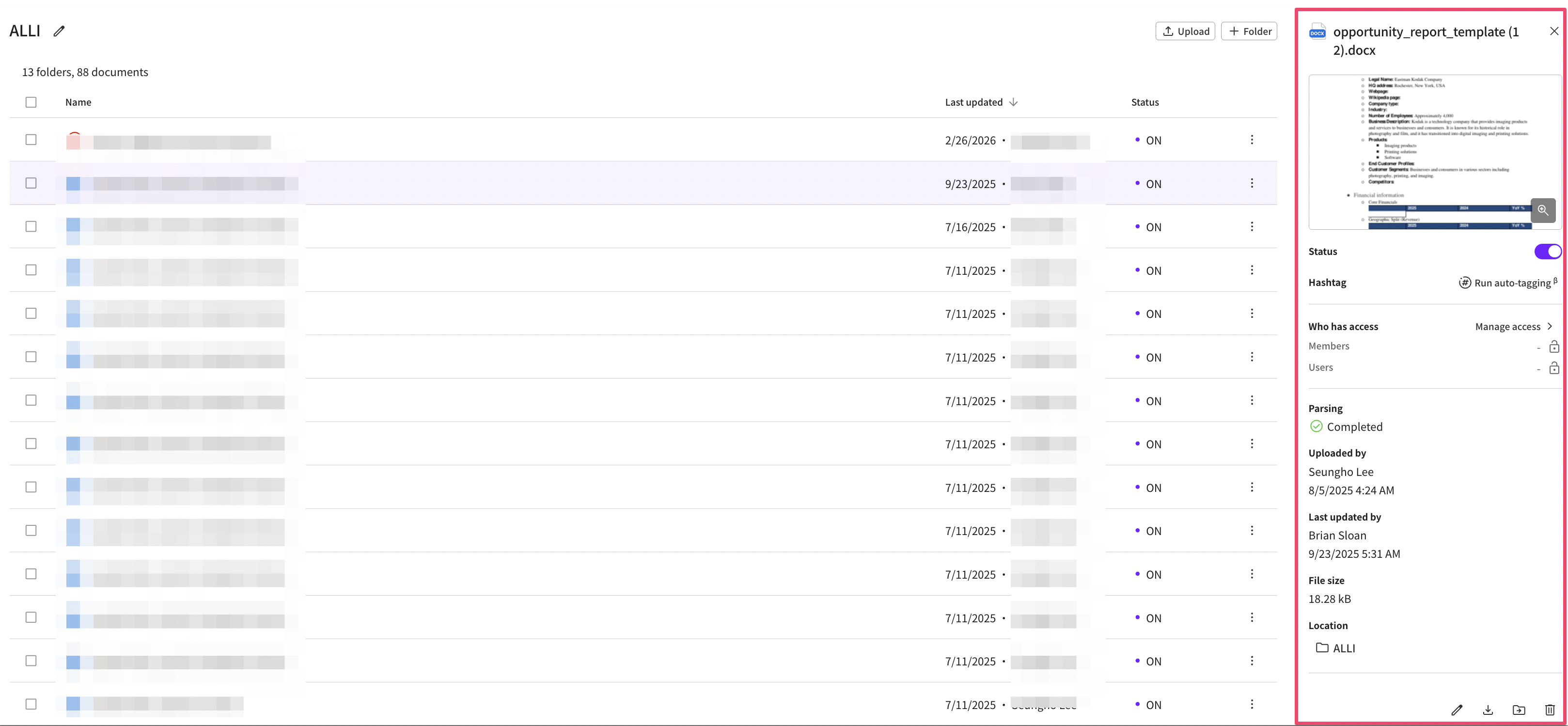
In the Documents tab, you can use the left navigation bar to view the entire folder structure. Folders can be created in multiple hierarchical levels, and there is no limit to the number of folders or levels.
1. **Document search feature -** Use document titles and filtering options to quickly find specific documents.
2. **File upload -** You can upload documents and ZIP files.
3. **Create folder -** You can create a new folder. - Be sure to confirm the correct folder location before creating it.
4. **View document details:** When you select a specific document, **detailed metadata for that file**will be displayed on the right. - **Status** : Indicates whether the document is active. Active documents are used when retrieving answers during searches. - **Hashtags** : Metadata that can be used when searching documents. If hashtags are set, you can apply search filters based on them. If there are no hashtags, searches are performed across all documents or within the specified folder in the node.
5. **Access permissions list** - View and edit the administrators' and users' access permissions for the document.
6. **Parsing -** You can check whether the document was uploaded correctly.
7. **Created / Recently modified -** The document's creation and recent modification dates and the member who performed the actions are displayed.
8. **File size -** You can check the document's file size.
9. **Location -** Shows which folder the document belongs to.
10. **Automatic Q\&A generation -** You can generate automatic Q\&A for the document using an LLM model. - When you click the generate button, you can specify the model to use for Q\&A generation, the group prompt, and the page range.
11. **Document editing features -** Edit file - Download file - Move file - Delete
These features allow you to edit and manage documents more efficiently.